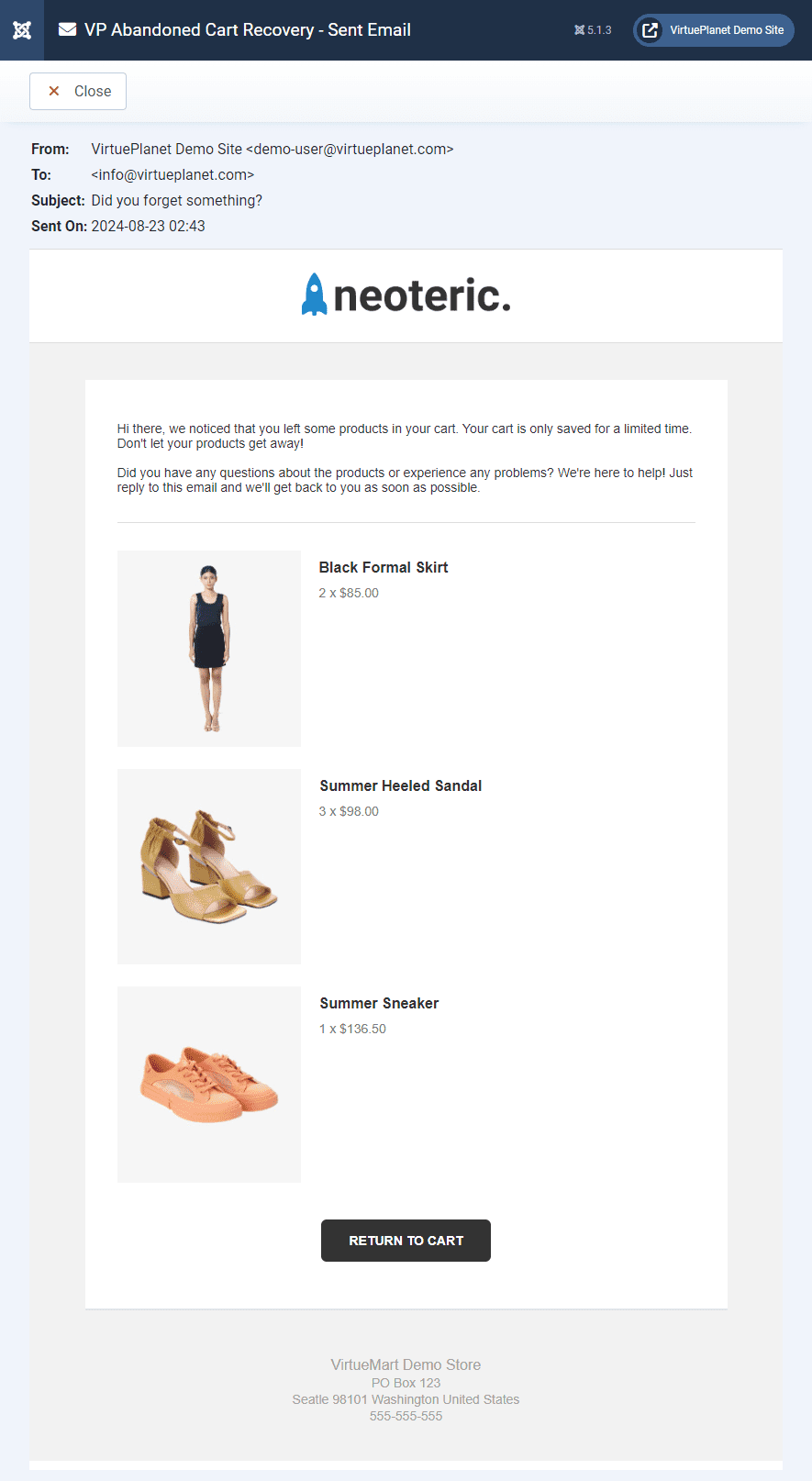
VP Abandoned Cart Recovery is an extension for VirtueMart that allows you to recover abandoned carts by sending email reminders to customers who have abandoned them. It saves all the carts until an order is placed, and the site owner can view them in the component's admin section. The following documentation explains the VP Abandoned Cart Recovery installation and configuration steps.
Installation
You can download the latest installation packages from our site's VP Abandoned Cart Recovery download page. If you have an older version of Joomla!, VirtueMart or PHP, please check the compatibility section to find the version of VP Abandoned Cart Recovery compatible with your Joomla!, VirtueMart, and PHP versions.
All VP File Upload Custom Field installation packages contain the component and associated plugins. Installing it will install all of these items automatically. It can also be used to upgrade/update an existing VP Abandoned Cart Recovery installation. You need to install it without uninstalling the previous release.
You can install the zipped package as it is through Joomla Extension Installer, which will install the complete package on your site, making your life a little easier. After the installation, you can find the package as Package - VP Abandoned Cart Recovery in Joomla! Extension Manager.
Log in to your site's administrator section. Click on System → Install → Extensions. Click on the Upload Package File tab. Drag and drop the installation ZIP file. Alternatively, click the Browse for File button to locate and select the ZIP file installation. After a short while, Joomla will tell you that the package has been installed.
Uninstallation
You can uninstall the extension just like any other Joomla! Extension. In your site's back-end, go to Extensions Manager, select Package - VP Abandoned Cart Recovery, and click Uninstall. This will remove the VP Abandoned Cart Recovery package, including the component and associated plugins.
Configuration
This section explains the component's configuration options.
Cart
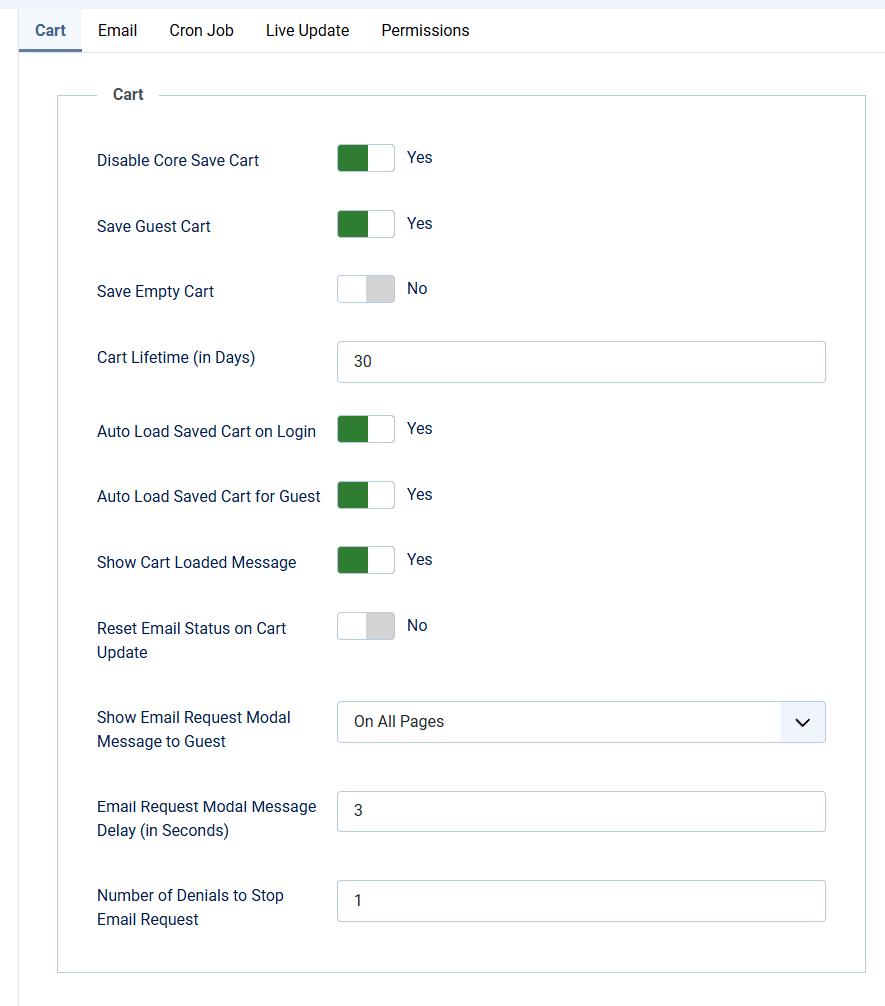
Disable Core Save Cart
Disable the core VirtueMart save cart functionality. This will prevent VirtueMart from saving the cart data. Enabling this option is recommended to prevent conflicts.
Save Guest Cart
Enable this to save guest carts.
Save Empty Cart
Save cart data even if there are no products. Empty carts will not trigger the abandoned cart recovery emails.
Cart Lifetime (in Days)
The number of days after the cart data is deleted.
Auto Load Saved Cart on Login
Auto-load the cart data when the user logs in.
Auto Load Saved Cart for Guest
Auto-load the saved cart data for the guests. This feature uses cookies. If yes, the cart will be saved even when the user is not logged in or provided an email address.
Show Cart Loaded Message
Show the cart loaded message to the user when the cart data is auto-loaded.
Reset Email Status on Cart Update
Reset the email status when the cart is updated.
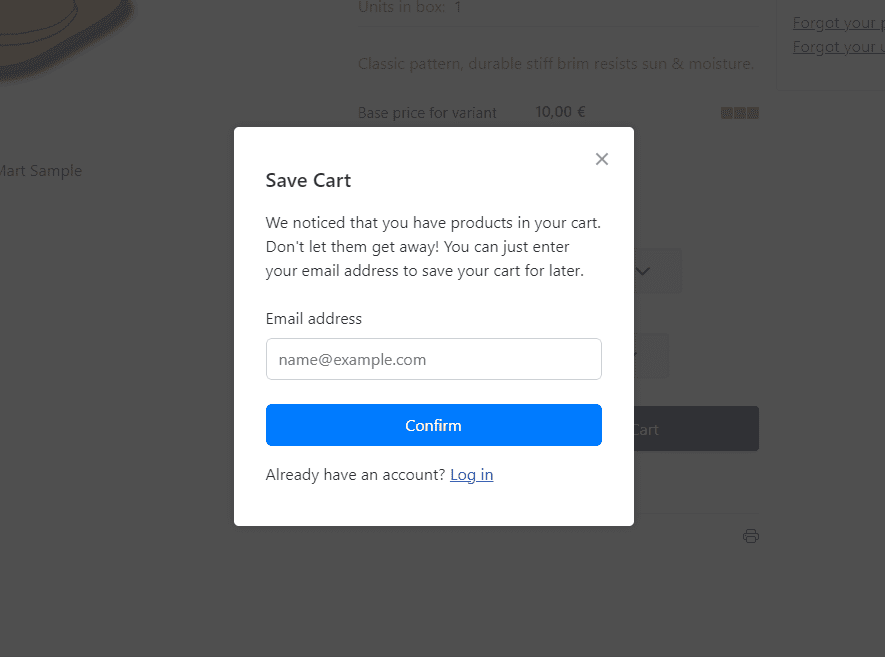
Show Email Request Modal Message to Guest
Show the guest the email address request message when products exist in the cart or when a product is added. If you select 'On Cart Page', the message will be shown on the cart page. If you choose 'On All Pages', the message will be shown on all pages except the Joomla user and VirtueMart account pages. The modal email form looks like the screenshot below.
Email Request Modal Message Delay (in Seconds)
Set the delay in seconds before the email request message is shown to the guest.
Number of Denials to Stop Email Requests
The number of times the user must deny the email request message before it stops showing.
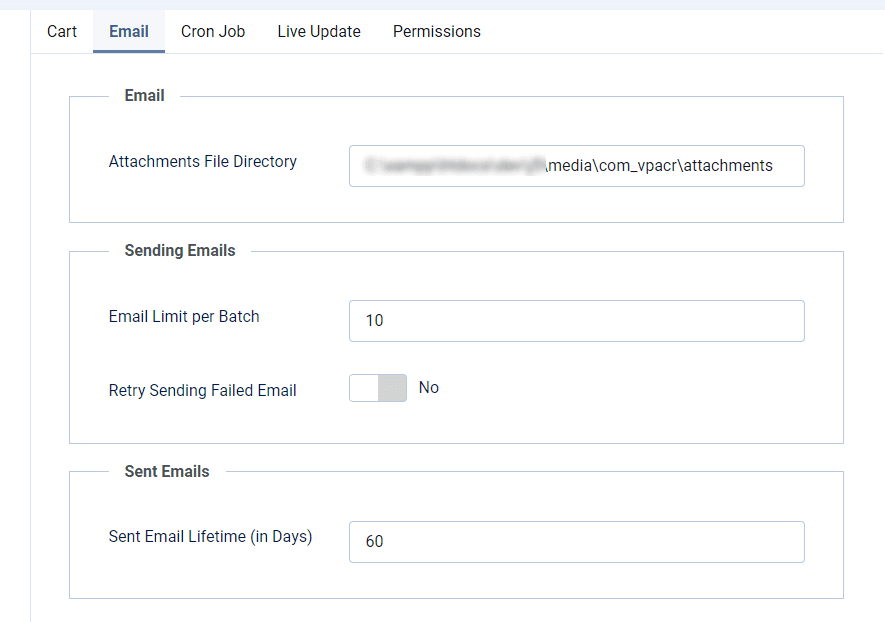
Attachments File Directory
The directory where the attachments are stored. It must be within the Joomla root directory.
Email Limit per Batch
The number of emails to send per batch. Increase this value if you have a large number of emails to send and your server can handle it.
Retry Sending Failed Email
Retry to send the email if it fails due to system errors.
Sent Email Lifetime (in Days)
The days after the sent email data is deleted.
Cron Job
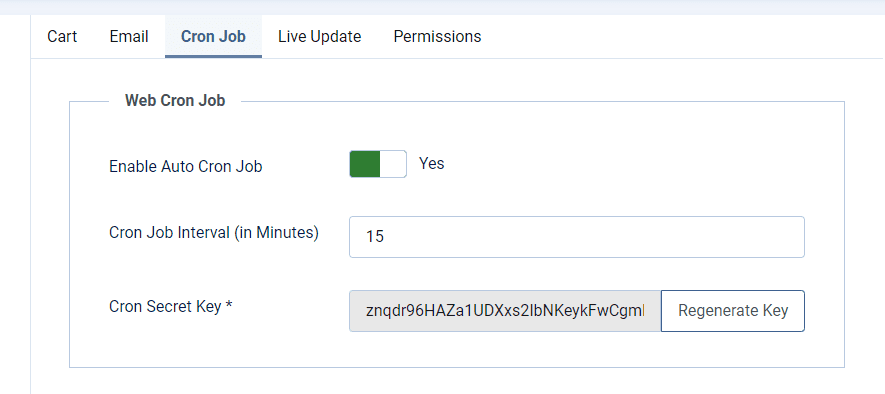
Enable Auto Cron Job
Enable the automatic web cron job to send the emails automatically, delete the cart data and the sent email data after the specified lifetimes.
Cron Job Interval (in Minutes)
The interval in minutes after which the web cron job will run.
Cron Secret Key
The secret key to access the web cron job. This key is used to prevent unauthorized access to the cron job.
Manual Cron Job
You can manually trigger the web cron job by calling the following URLs.
General Scheduled Tasks: Call this URL to run all the general scheduled tasks. It will be executed as per the Cron Job Interval set above.
https://www.your-site.com/index.php?option=com_vpacr&task=cron.run
Send Emails: Call this URL to send the scheduled emails. You must pass the Cron Secret Key to run this.
https://www.your-site.com/index.php?option=com_vpacr&task=cron.sendEmails&secret_key=THE-CRON-SECRET-KEY
Live Update
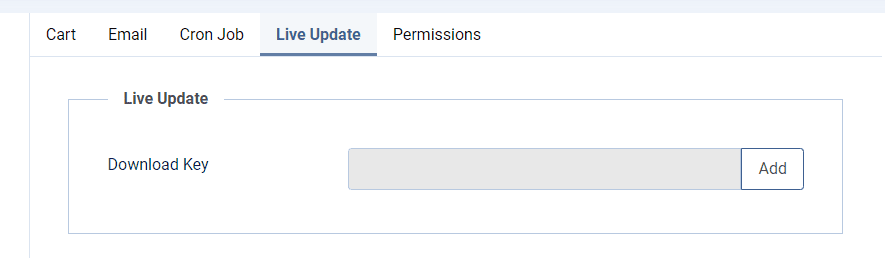
Add your Virtueplanet Download Key to receive updates through the Joomla Live Extension Update system.
Carts
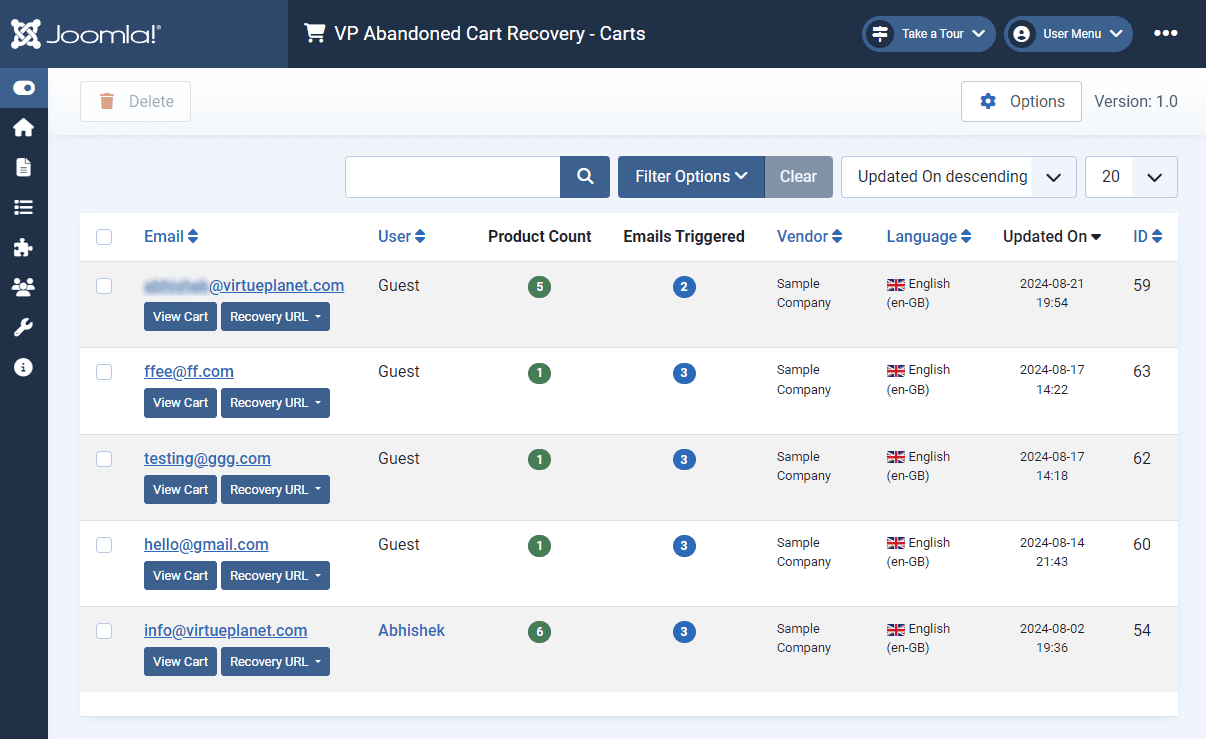
You can see the list of all the saved carts and their statuses in the carts section. You can also view all the cart information by clicking the "View Cart" button or email. You can filter the carts by user, email, etc. and delete them if necessary.
Cart
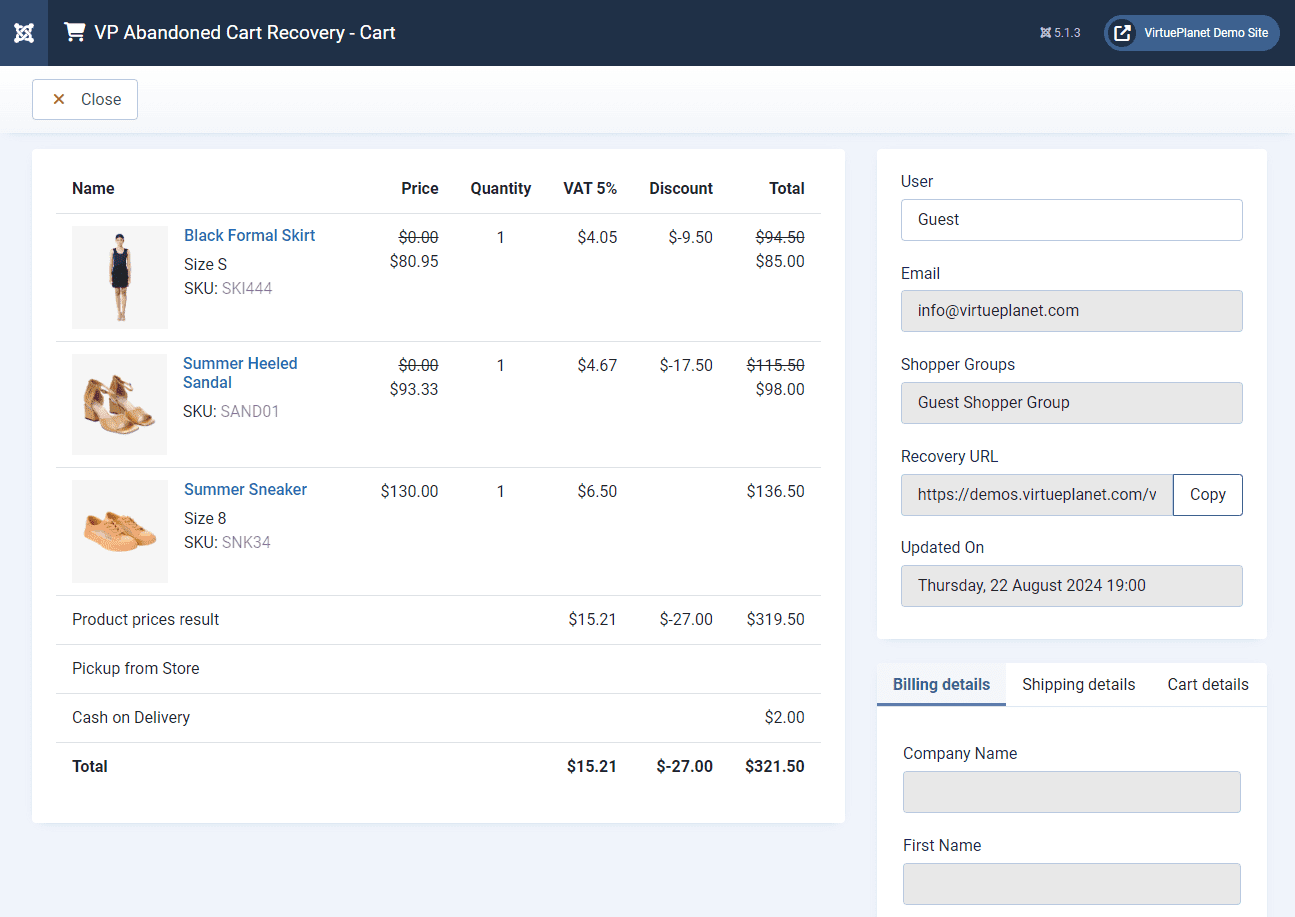
This is the detailed view of the cart. You can view all the saved cart and user information here. The Recovery URL can be used to retrieve the saved cart and continue to checkout.
Emails
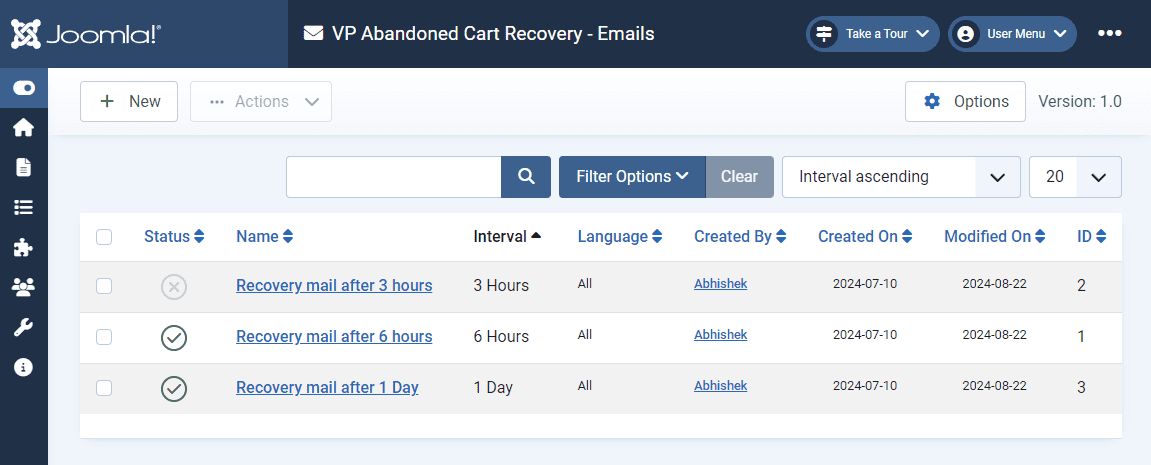
You can add, edit, and view the emails scheduled to be sent to users to recover the carts. Click the New button to add a new email or click the name to view an existing one. You can also duplicate, unpublish, delete, etc., the existing emails.
Add/Edit an Email
You can find all the email editing options below. You can preview the email by clicking the Preview button displayed on the toolbar.
General
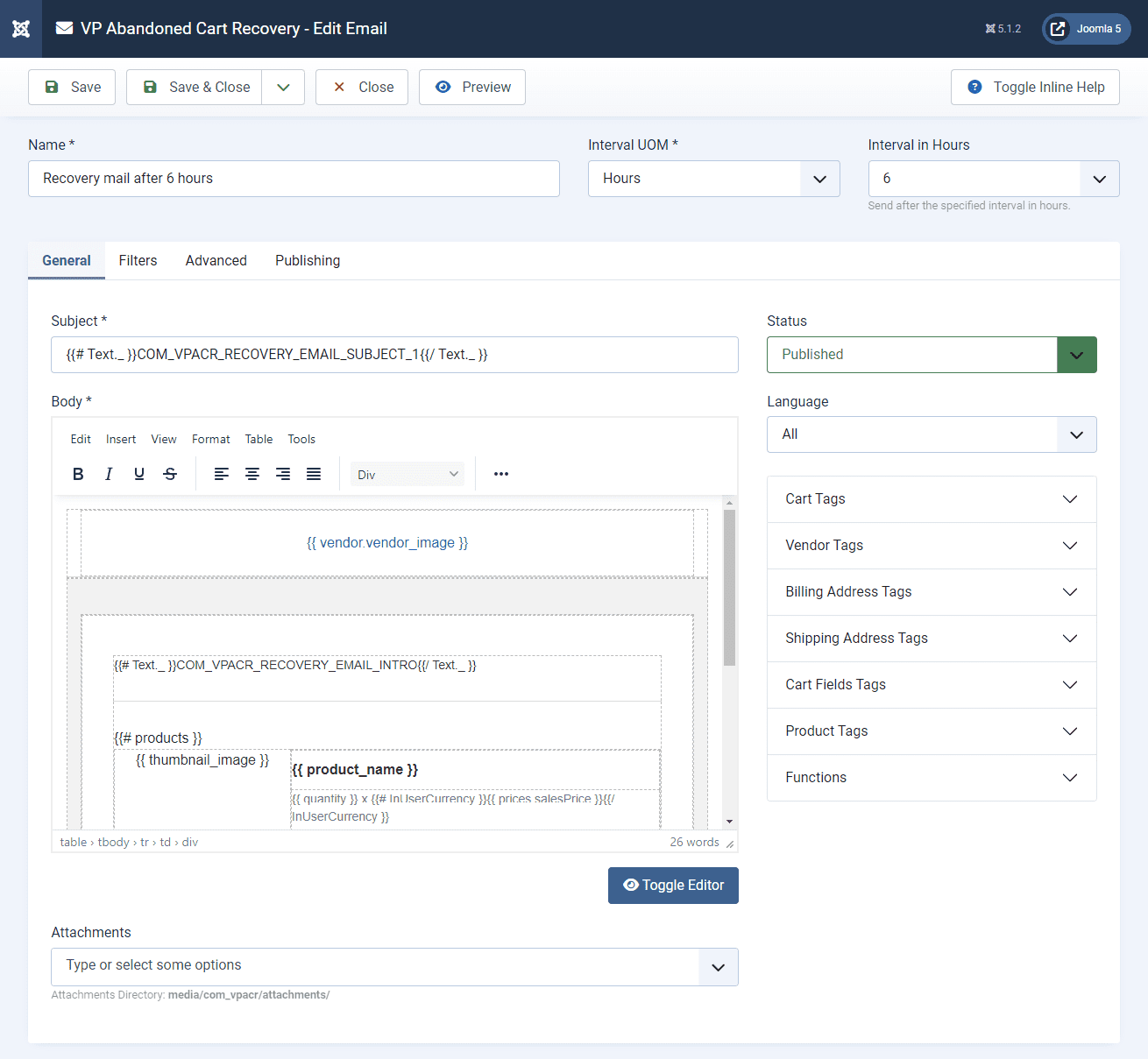
Name
Give a unique name to the email. This is for internal tracking purposes.
Interval UOM
Select the interval unit of measure. The available options are Minutes, Hours, Days, Weeks, Months and Years.
Interval
Select the interval value.
Subject
The subject of the email.
Body
The body of the email.
Attachments
Attach files to the email.
Status
Set publication status.
Language
Select the language of the email for multilingual sites. If you select a specific language, the email will be sent only to the customers whose carts are saved in the chosen language.
Cart Tags
The cart variable tags can be used in the subject and body. Click on the button to see all the available tags.
Vendor Tags
The vendor variable tags can be used in the subject and body. Click on the button to see all the available tags.
Billing Address Tags
The billing address variable tags can be used in the subject and body. Click on the button to see all the available tags.
Shipping Address Tags
The shipping address variable tags can be used in the subject and body. Click on the button to see all the available tags.
Cart Field Tags
The cart field variable tags can be used in the subject and body. Click on the button to see all the available tags.
Product Tags
The product variable tags can be used in the subject and body. There can be multiple products in the cart. So, you must use the following tags inside the products loop function. Example: {{# products }} TAGS GO HERE {{/ products }}. Click on the button to see all the available tags.
Functions
The Mustache function tags can be used in the subject and body. Click on the button to see all the available tags.
Filters
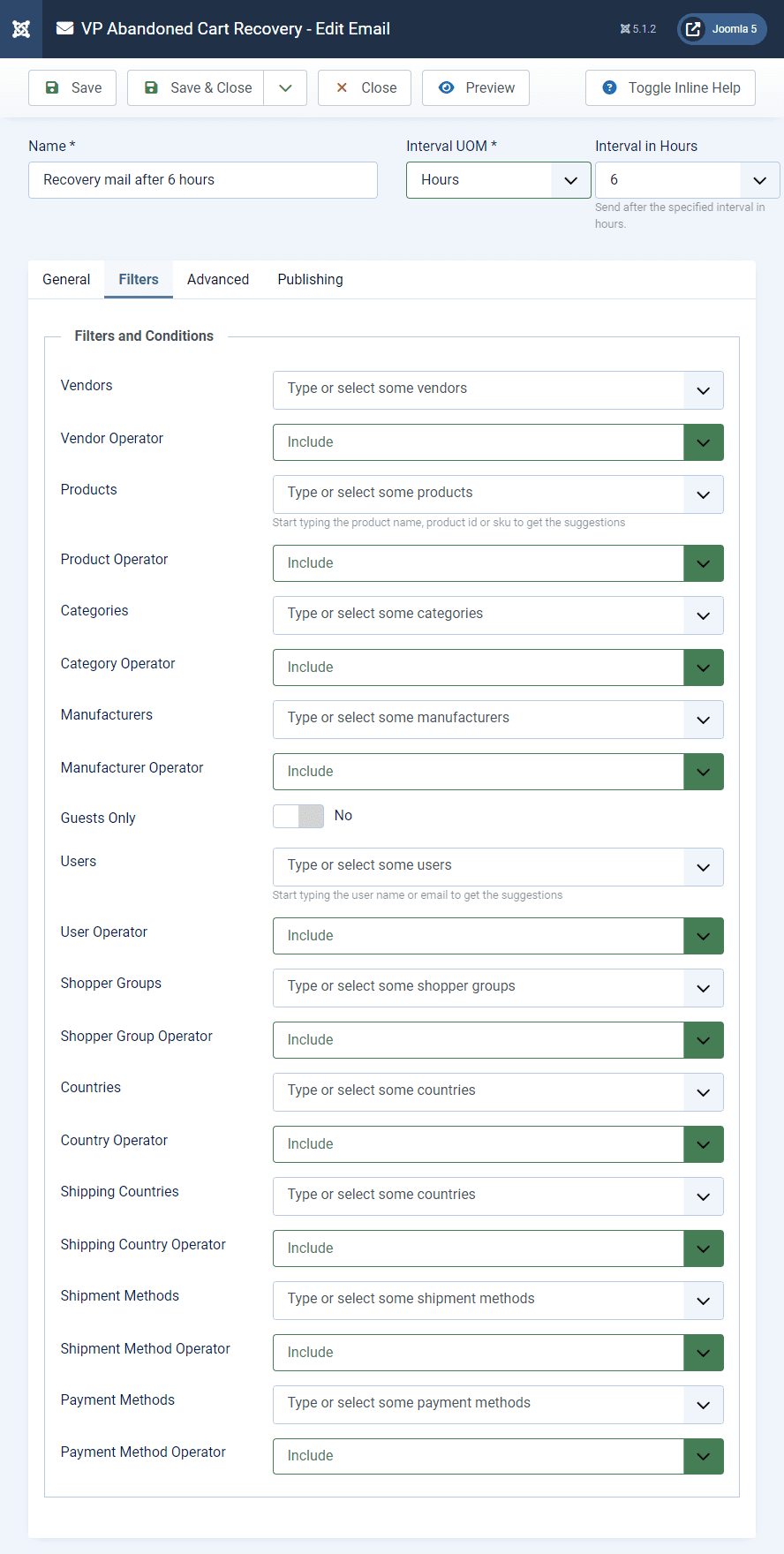
Here, you can set the filters and conditions for the email. Using the following options, you can target the email to specific carts.
Vendors
Select the vendors.
Vendor Operator
Select the desired operator for the selected vendors. i.e. include or exclude.
Products
Select the products. Start typing the product name, product ID or SKU to get suggestions.
Product Operator
Select the desired operator for the selected products. i.e. include or exclude.
Categories
Select the product categories.
Category Operator
Select the desired operator for the selected categories. i.e. include or exclude.
Manufacturers
Select the manufacturers.
Manufacturer Operator
Select the desired operator for the selected manufacturers. i.e. include or exclude.
Guests Only
Turn on to send emails to guests only.
Users
Select the users. Start typing the user name or email to get suggestions
User Operator
Select the desired operator for the selected users. i.e. include or exclude.
Shopper Groups
Select the shopper groups.
Shopper Group Operator
Select the desired operator for the selected shopper groups. i.e. include or exclude.
Countries
Select the billing address countries.
Country Operator
Select the desired operator for the selected countries. i.e. include or exclude.
Shipping Countries
Select the shipping countries.
Shipping Country Operator
Select the desired operator for the selected shipping countries. i.e. include or exclude.
Shipment Methods
Select the shipment methods.
Shipment Method Operator
Select the desired operator for the selected shipment methods. i.e. include or exclude.
Payment Methods
Select the payment methods.
Payment Method Operator
Select the desired operator for the selected payment methods. i.e. include or exclude.
Advanced
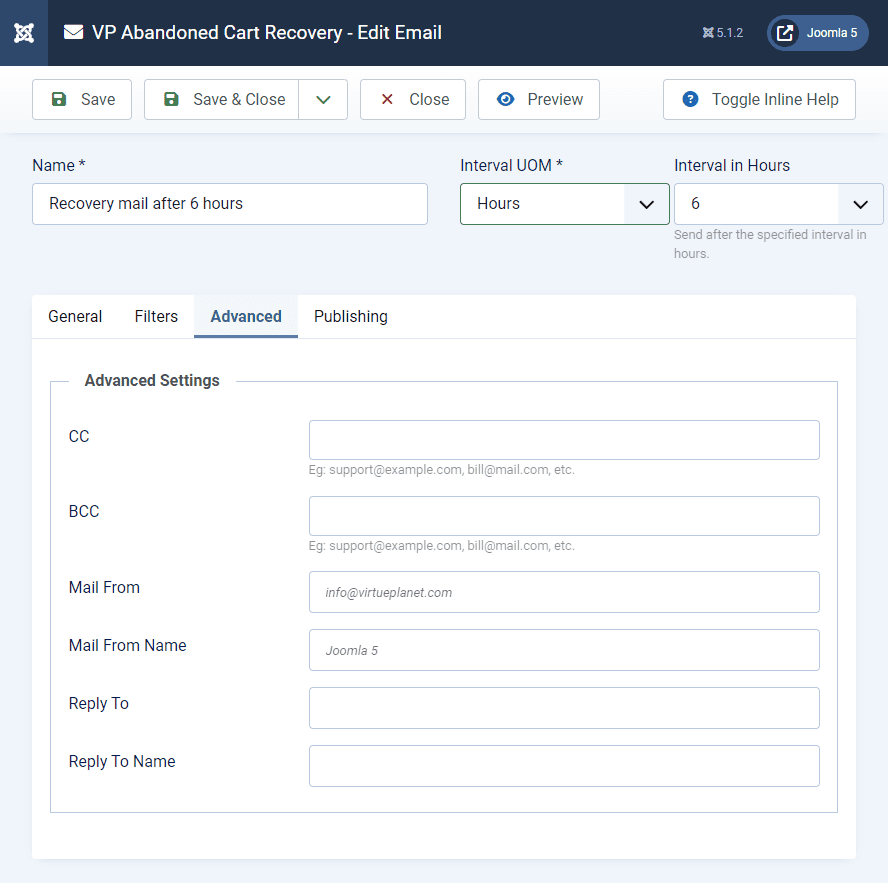
CC
Mark a copy to the email addresses. You can enter multiple email addresses separated by a comma.
BCC
Mark a blind copy to the email addresses. You can enter multiple email addresses separated by a comma.
Mail From
Sender's email address. If empty, it will use the email address provided in the Joomla Global Configuration.
Mail From Name
Sender's name. If empty, it will use the name provided in the Joomla Global Configuration.
Reply To
Reply to the email addresses.
Reply To Name
Reply to the name.
Advanced
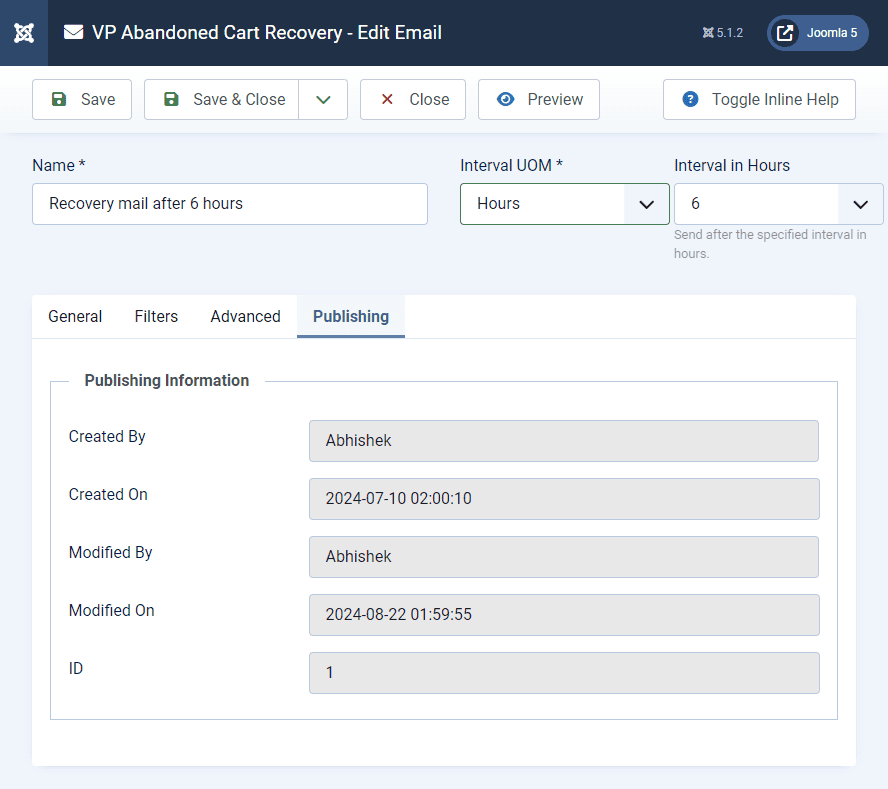
The following information is read-only and displayed for internal tracking purposes.
Created By
The name of the user who created the email.
Created On
The creation date and time.
Modified By
The name of the user who modified the email.
Modified On
The modification date and time.
ID
The ID of the email.
Sent Emails
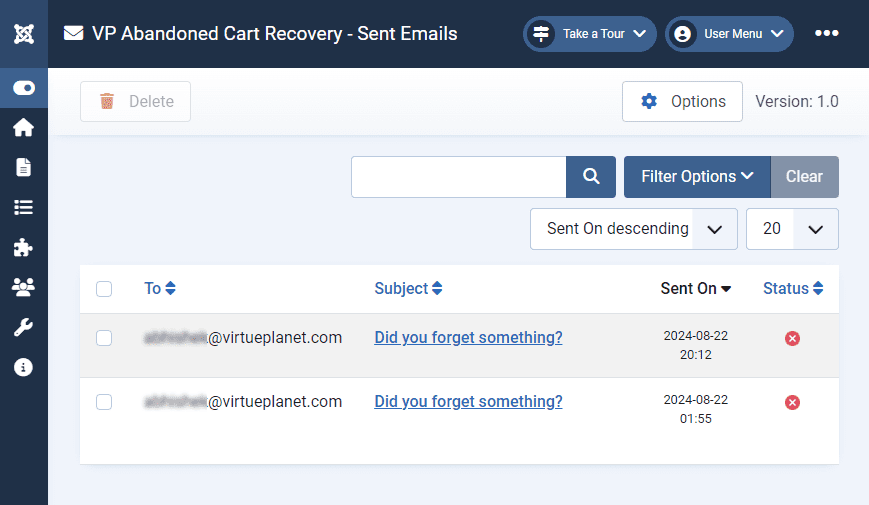
Here, you can see the list of all the emails sent by the component and their respective status. You can view the individual sent email by clicking the subject.
Sent Email