

VP Merchant Export turns your VirtueMart catalogue into the product data feeds that shopping channels read. You create one feed profile per channel, the component builds the feed file from your live catalogue, and it gives you a web address that you paste into the channel's settings. From then on the channel collects your products on the schedule you set. The following documentation explains how to install, configure and use VP Merchant Export.
It supports Google Merchant Center, Microsoft (Bing) Merchant Center, the Meta catalogue for Facebook and Instagram, four Amazon upload file types, and eBay File Exchange. Each channel is a separate profile with its own settings, its own schedule and its own feed URL.
Requirements
Before you install, check that your site meets the following:
- Joomla 4.3 or 5.x
- VirtueMart 4.x, installed and enabled, with products in the catalogue
- PHP 8.1 or higher
- A seller account on the channel you want to feed, such as Google Merchant Center, Microsoft Merchant Center, Meta Commerce Manager, Amazon Seller Central or eBay Seller Hub
Installation
You can download the latest installation package from our site's VP Merchant Export download page. Check the Requirements above before you install.
The installation package contains the component and its two helper plugins. Installing it puts all of them in place in one go. The same package is also used to update an existing installation, so there is no need to uninstall the previous release first.
Log in to your site's administrator section. Click on System → Install → Extensions. Click on the Upload Package File tab. Drag and drop the installation ZIP file, or click the Or browse for file button to locate and select it. After a short while Joomla will tell you that the package has been installed.
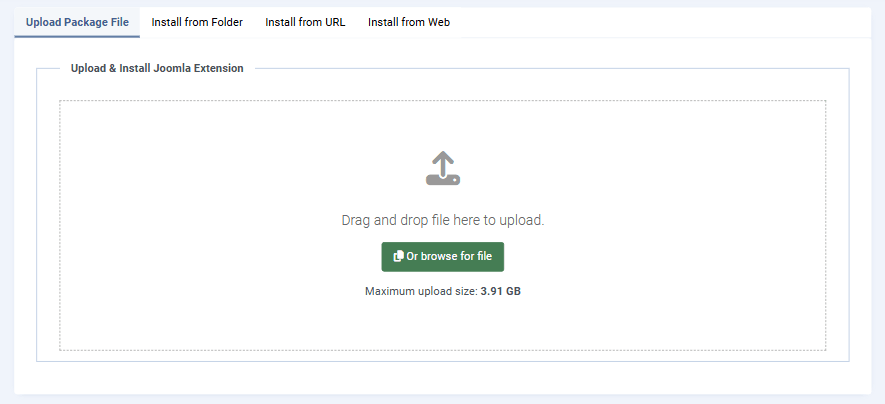
The package installs three items: the VP Merchant Export component, a Task plugin that lets Joomla's own scheduler refresh your feeds, and a Console plugin that adds a command line option. Both plugins are enabled automatically during installation. If for any reason one of them cannot be enabled, the installer shows a message with a link to the Plugins page so you can switch it on by hand.
Once installed, you will find the component under Components → VP Merchant Export in the administrator menu. After installation the package appears as Package - VP Merchant Export in the Joomla Extension Manager.
Uninstallation
You can uninstall the extension like any other Joomla extension. In your site's back end go to the Extensions Manager, select Package - VP Merchant Export and click Uninstall. This removes the package along with the component and both plugins. Your feed profiles and their run history are removed at the same time, so export anything you want to keep beforehand.
How It Works
The component works in five steps:
- You create a profile for a channel and save it.
- You click Generate now, or you let a schedule do it for you.
- The component reads your catalogue, builds the feed file and stores it in a protected folder on your server.
- You copy the profile's feed URL and paste it into the channel's feed settings.
- The channel collects that URL on its own schedule and updates your listings.
The feed URL always serves the file that was generated most recently. Nothing is built while the channel is collecting it, so even very frequent collection stays fast and never puts load on your shop.
Quick Start: Your First Feed
If you want a Google feed live in a few minutes, follow these steps. Every setting mentioned here is explained in full further down.
- Go to Components → VP Merchant Export and click New.
- On the General tab, type a Title such as "Google Shopping - UK" and choose Google Merchant Center as the merchant. The form reloads so that the rest of the tabs match your choice.
- On the Product Selection tab, leave the category and manufacturer boxes empty to include everything, or pick the ones you want.
- On the Localisation & Pricing tab, choose the language and the currency the feed should use, and check that the Price Type matches the price your shop displays.
- On the Merchant Settings tab, start typing in the Product Category box and pick the Google category that best fits your products.
- Click Save & Close, then click Generate now on the profile's row.
- Click Copy in the Feed URL column and paste that address into Google Merchant Center under your data sources.
That is a working feed. Everything after this point is about refining it.
Feed Profiles
The Profiles list is the home screen of the component. It shows every feed you have set up, one row per channel.
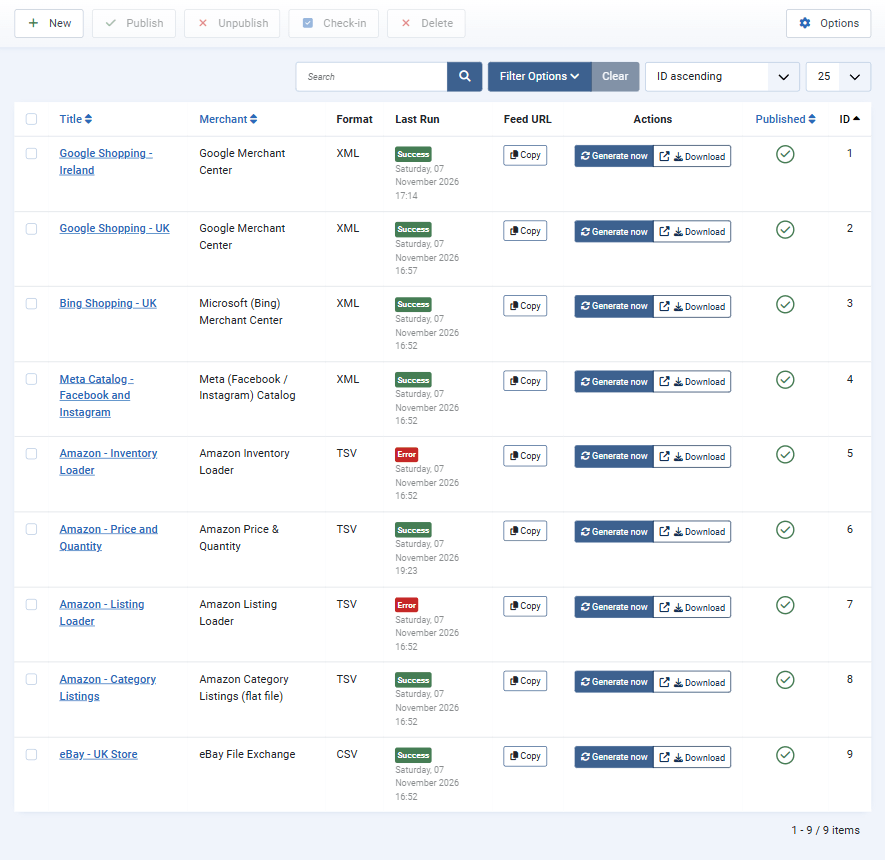
The columns tell you the state of each feed at a glance:
Title
The name you gave the profile. Click it to open the profile for editing.
Merchant
The shopping channel this feed targets.
Format
The file format of the generated feed. Which formats are available depends on the merchant, so this column simply reflects what that channel accepts.
Last Run
The result and time of the most recent generation. Success means every selected product made it into the feed. Partial means the feed was built but some products were left out, usually because they were missing something the channel requires. Error means the last run failed or stopped, or skipped every product, so the feed was not changed. Running means a run is working right now. Skipped runs are left out of this column, because they generated nothing. The Runs list explains exactly which products and why.
Feed URL
A Copy button that puts the public feed address on your clipboard, ready to paste into the channel.
Actions
Generate now rebuilds the feed straight away and shows you the result. Download opens the generated file so you can inspect it or upload it by hand, which is how the Amazon files are normally used.
Published
Click the icon to publish or unpublish a profile. An unpublished profile's feed URL returns "not found" until you publish it again, which is a quick way to take a feed offline without deleting it. You can also select several rows and use the Publish and Unpublish buttons in the toolbar.
The toolbar also holds New, Check-in, Delete and Options. Above the table, the search box and Filter Options let you narrow a long list by title or by merchant.
Creating and Editing a Profile
A profile is a saved set of choices. You can create as many as you like, including several for the same channel, for example one feed per language or one per currency. The profile form is split into tabs, described below.
General
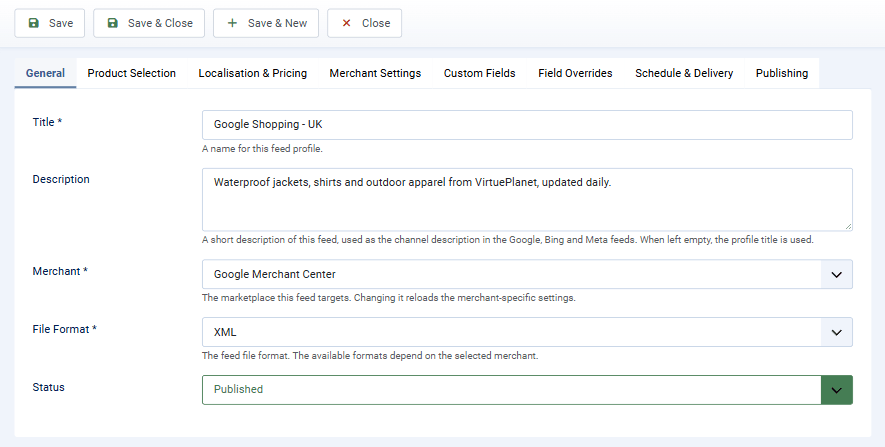
Title
A name for this feed profile, such as "Google Shopping - UK". It is also the title of the Google, Bing and Meta feeds.
Description
A short description of this feed. It is used as the channel description inside the Google, Bing and Meta feed files. If you leave it empty the profile title is used instead.
Merchant
The marketplace this feed targets. This is the most important choice on the whole form, because it decides which file formats are offered, which settings appear on the Merchant Settings tab, and which attributes you are allowed to map to. Changing it reloads the form so that everything else matches the new channel.
File Format
The format of the generated file. The list only offers what the selected merchant accepts: XML for Google, Bing and Meta, TSV for all four Amazon file types, and CSV or TSV for eBay.
Status
Published or Unpublished. Leave it published for the feed URL to work.
Product Selection
This tab decides which products end up in the feed.
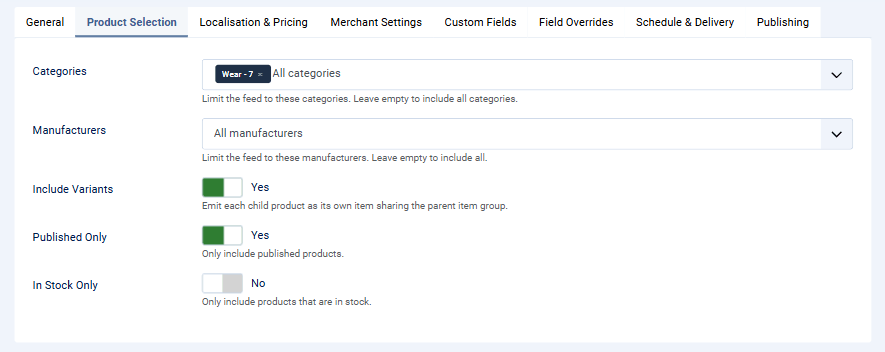
Vendor ID
The VirtueMart vendor whose catalogue is exported. It appears only when your shop has more than one vendor. A single vendor shop always exports vendor 1, so the field is hidden there.
Categories
Limit the feed to the categories you pick here. Leave it empty to include every category.
Manufacturers
Limit the feed to certain brands. Leave it empty to include them all.
Include Variants
When this is on, each child product is sent as its own feed item, grouped with its siblings so the channel understands they belong to one product. Turn it off if you would rather send only the parent product. Option items from cart custom fields (see Custom Fields) also need it on.
Published Only
Export only published products. Leaving this on is almost always what you want.
In Stock Only
Export only products that are currently in stock. Useful when a channel penalises listings that are out of stock, though most channels prefer to receive the product with an out of stock availability instead.
A note on categories in the feed. A product's category becomes the channel's product type breadcrumb. Because VirtueMart lets one product sit in several categories, the feed lists a full breadcrumb for each of them, for example Wear > Mister and Wear > Lady, rather than a single flattened path. If you want a product to report just one category, set its Canonical Category in VirtueMart and the feed will use only that.
Localisation & Pricing
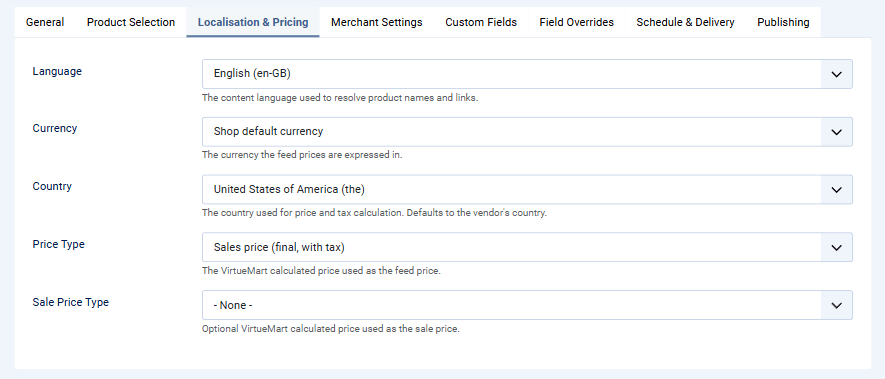
Language
The content language the feed is generated in. Product names, descriptions and category paths are taken from that language, and the product links point at that language's pages.
Currency
The currency the feed prices are expressed in. Leave it on the shop default unless the channel needs a specific one. Prices are converted using your VirtueMart exchange rate settings, so the feed always mirrors what your storefront would show.
Country
The country used for price and tax calculation. It defaults to your vendor's country.
Price Type
Which VirtueMart calculated price the feed uses. This is the same set of price types your shop already works with, so picking the one your storefront displays keeps the feed price and the shop price in step.
Sale Price Type
An optional second price used for the channel's sale price attribute. Leave it at - None - if you do not advertise sale prices.
Feed prices are always your public prices. The feed uses the prices a visitor who is not logged in sees, whoever generates it. Prices for shopper groups, such as a "Gold" or "Wholesale" group, and discount rules limited to shopper groups are never used, even when you click Generate now while logged in as an administrator. Google has not allowed member prices in the price or sale price since July 2025. For the same reason, products and custom fields that only some shopper groups can see are left out of the feed.
Price rounding
Feed prices are rounded the way your storefront shows them to a visitor who is not logged in. If the Guest Shopper Group has Enable shoppergroup specific price display switched on, its Rounding Digits apply. Otherwise the feed uses the Rounding Digits under VirtueMart > Configuration > Pricing > Price Configuration, where -1 means the currency's own number of decimals. The feed also follows VirtueMart's Round only display setting.
The rounding is the same whoever generates the feed. The shopper group of an administrator, or of a logged in visitor whose page visit happens to start Joomla's scheduler, has no effect on it. To change the decimals in the feed, change these VirtueMart settings; the feed and your product pages then show the same price, which Google requires.
Google, Bing and Meta feeds show at least two decimals (for example 135.00 EUR) and keep a third when a price is rounded to three. Amazon and eBay files always use two. If guests cannot see prices in your shop, the feed rounds to the currency's decimals.
Custom Fields
Shopping channels expect attributes such as colour, size and material. In VirtueMart these usually live in custom fields, and this tab is where you connect the two.
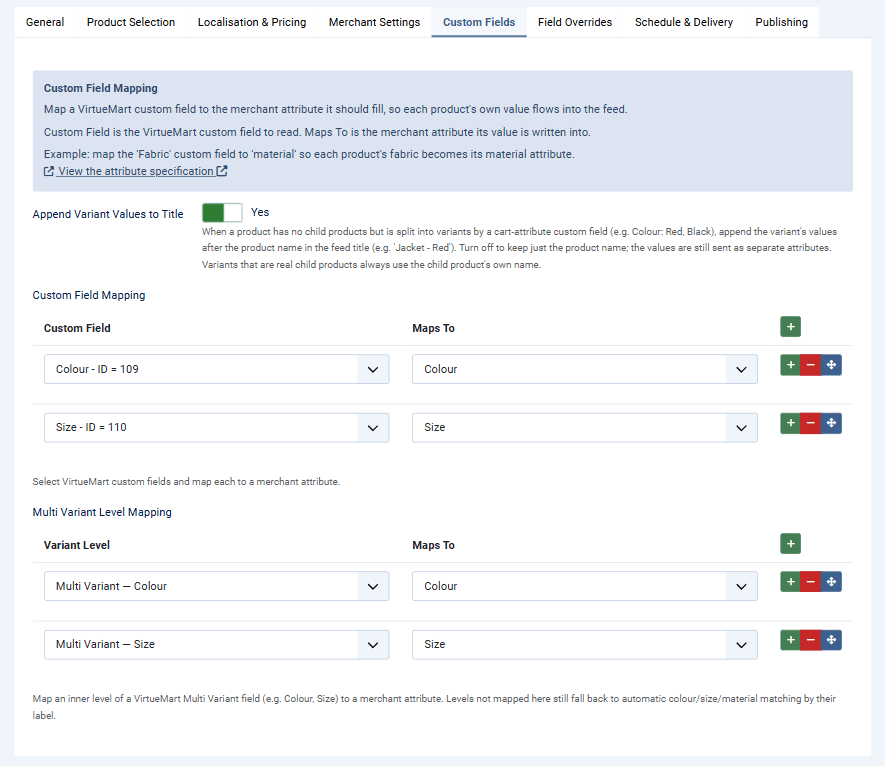
Append Variant Values to Title
A Yes/No switch, on by default. When a product has no child products but is split into variants by a cart attribute custom field, for example a Colour field offering Red and Black, this adds the variant's value after the product name in the feed title, giving you "Jacket - Red". Turn it off to keep the plain product name; the colour and size values are still sent as their own attributes either way. Variants that are real child products always use the child product's own name and ignore this switch.
Custom Field Mapping
Add one row for every custom field you want in the feed. Custom Field is the VirtueMart custom field to read, and Maps To is the channel attribute its value should fill. For example, mapping a "Fabric" field to Material makes each product's fabric become its material attribute.
For channels with a fixed specification, which means Google, Bing and Meta, the Maps To list offers only the attributes those channels accept. For open channels, which means eBay and the Amazon category template, you can type any attribute name you like and the list simply suggests common ones.
Variant attributes such as colour and size are also detected automatically from your product variations, so you only need a mapping row when the value lives in a custom field rather than on the variant itself.
Products with selectable options. If a product offers options through a VirtueMart cart custom field, for example a Colour field with Red and Black, mapping that field (Colour to colour) makes the feed list one item per option. With two mapped fields, such as Colour and Size, you get one item for each combination. The items are grouped so the channel knows they are the same product. A field with only one value stays a single item.
VirtueMart works out each item's price, so it is the price a shopper pays for that option: the option's price difference (a fixed amount or a percentage), tax, discount rules and any override price all apply, and the product's other options count at the choice the product page starts with. Only options a shopper can choose on the product page create items. A cart field that only shows text does not.
All the items link to the same product page, because VirtueMart cannot open a product page with an option already chosen. The page opens at its default price, so Google may report the other options' prices as not matching the page, or change them to the page price. If that matters for a product, set its options up as child products in VirtueMart, which gives each option its own page. If VirtueMart cannot work out an option's price, or a product has more than 500 option combinations, the product is sent as one item at its normal price, and the run messages say so.
Multi Variant Level Mapping
VirtueMart's native Multi Variant custom field defines several ordered levels on a single field, for example Colour and then Size. This table maps one specific level onto a channel attribute. The Variant Level picker lists the level labels actually in use in your catalogue, so you just choose the level and the attribute it should fill.
Levels you leave out are still matched automatically by their label where that is possible, which covers colour, size and material. You only need a row here when you want to force a particular level onto a particular attribute, such as mapping a "Finish" level to Pattern.
EU Energy Label (Google)
For products sold in the EU that need an energy label, for example appliances, lamps, televisions, smartphones and tablets, Google expects the product's code from the EU energy label database (EPREL) in the Certification attribute. Add a text custom field in VirtueMart, enter each product's value as EC:EPREL: followed by its EPREL code (for example EC:EPREL:123456), and map that field to Certification. The feed writes it in the structure Google requires. To send more than one certification for a product, separate them with commas.
The three simple Amazon file types, that is Inventory Loader, Price & Quantity, and Listing Loader, do not use custom field mapping at all. On those profiles this tab shows a short note saying so.
Field Overrides
Sometimes you want the same value on every product in a feed, for example a single brand name or a fixed condition. That is what this tab is for.
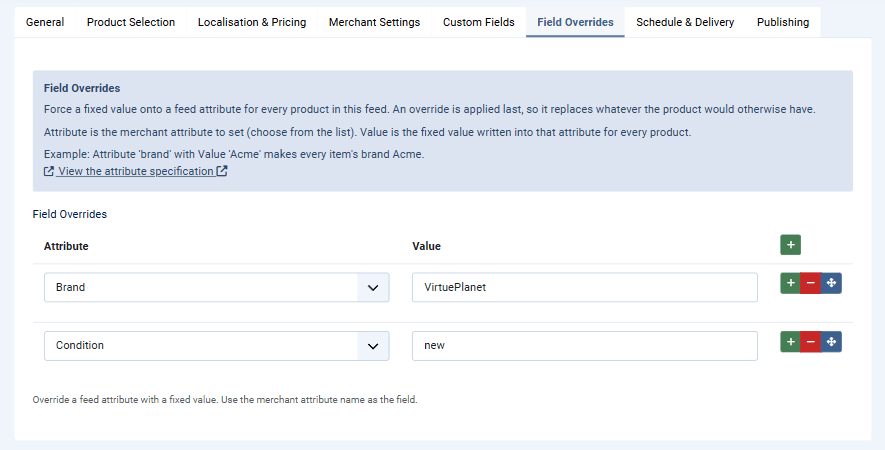
Attribute
The channel attribute you want to set. Pick it from the list, or type it for channels that accept free text attributes.
Value
The fixed value written into that attribute for every product in the feed.
In the example above, brand is set to VirtuePlanet and condition to new, so every item in the generated feed carries those two values. Overrides are applied last, which means they win over anything mapped from a custom field or detected from a variant. Like custom field mapping, overrides do not apply to the three simple Amazon file types.
Schedule & Delivery
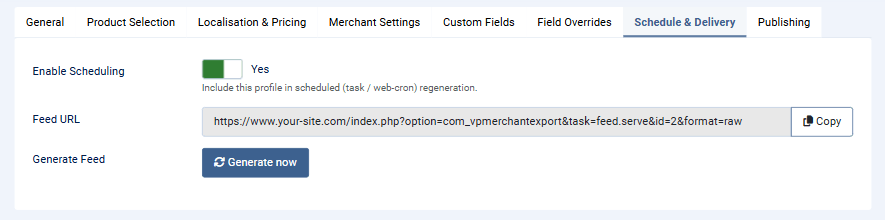
Enable Scheduling
Include this profile when a scheduled run refreshes all due profiles. Turn it on for every feed you want kept up to date automatically. A scheduled run that has been pointed at one specific profile ignores this switch and runs that profile regardless.
Feed URL
The public address of this feed. Click Copy to put it on your clipboard, then paste it into the channel's feed settings. The address is stable, so once you have given it to a channel you never need to change it.
Generate Feed
The Generate now button rebuilds the feed immediately, without leaving the form.
Publishing
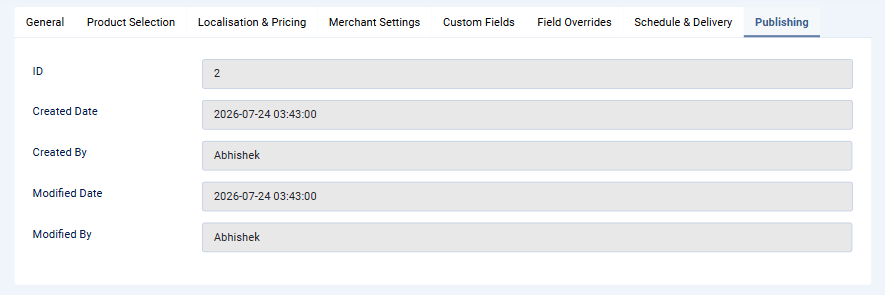
A read only summary of the record: its ID, when it was created and by whom, and when it was last changed and by whom. There is nothing to edit here, but it is useful when several people manage the same shop.
Merchant Settings
The Merchant Settings tab changes completely depending on the channel you picked on the General tab. It holds the settings that only that channel needs. At the top of the tab you will always find a short description of the feed being produced and a link straight to that channel's official specification, so you can check the current requirements without hunting for them.
Google Merchant Center
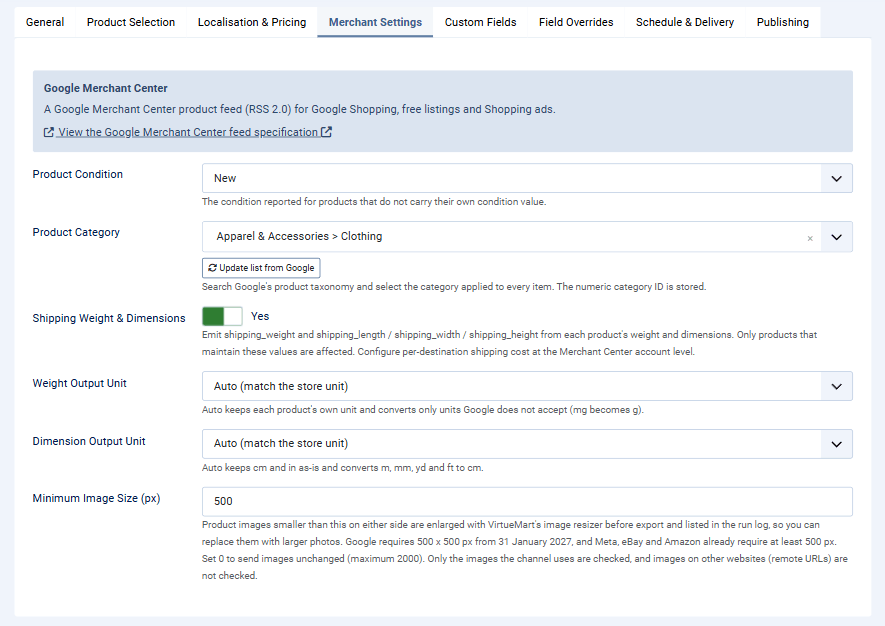
Produces an RSS 2.0 product feed for Google Shopping, free listings and Shopping ads.
Product Condition
The condition reported for products that do not carry their own condition value. For most shops this is New.
Product Category
The Google product category applied to every item. This is a searchable picker rather than a text box: start typing, for example shirts or running shoes, and choose the matching entry from Google's own taxonomy. There is no need to copy a path or a number by hand, because the correct numeric category ID is stored for you.
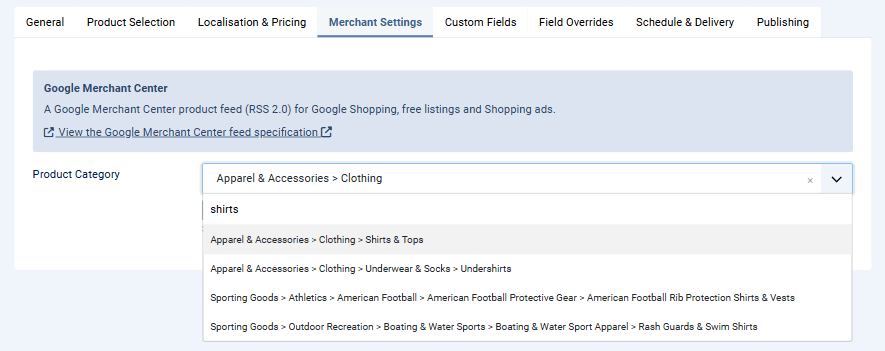
The full taxonomy is bundled with the extension, so the picker works even if your server cannot reach Google. The Update list from Google button below the box fetches the latest taxonomy when you want it.
Shipping Weight & Dimensions
Off by default. Turn it on to send each product's weight and package dimensions to Google. See Shipping Weight, Dimensions and Cost for the full explanation.
Weight Output Unit
Auto, which is recommended, keeps each product's own unit and converts only the units Google does not accept, so milligrams become grams. You can also force kilograms, grams, pounds or ounces.
Dimension Output Unit
Auto keeps centimetres and inches as they are and converts metres, millimetres, yards and feet to centimetres. You can also force centimetres or inches.
Minimum Image Size (px)
500 px by default. Product images smaller than this on either side are sent as an enlarged copy made with VirtueMart's image resizer. Set it to 0 to send every image unchanged. The same setting appears for Bing, Meta, eBay and the Amazon category template. Keep it at 500 for Google. See Product Images.
What to check before you submit. Make sure every product has a title, a description, an image and a price, because Google treats all four as required and any product missing one of them is left out of the feed. Map your custom fields to colour, size, material, gender, age group and the custom label attributes as your products need them. If you sell energy labelled products in the EU, map their EPREL code to Certification.
Microsoft (Bing) Merchant Center
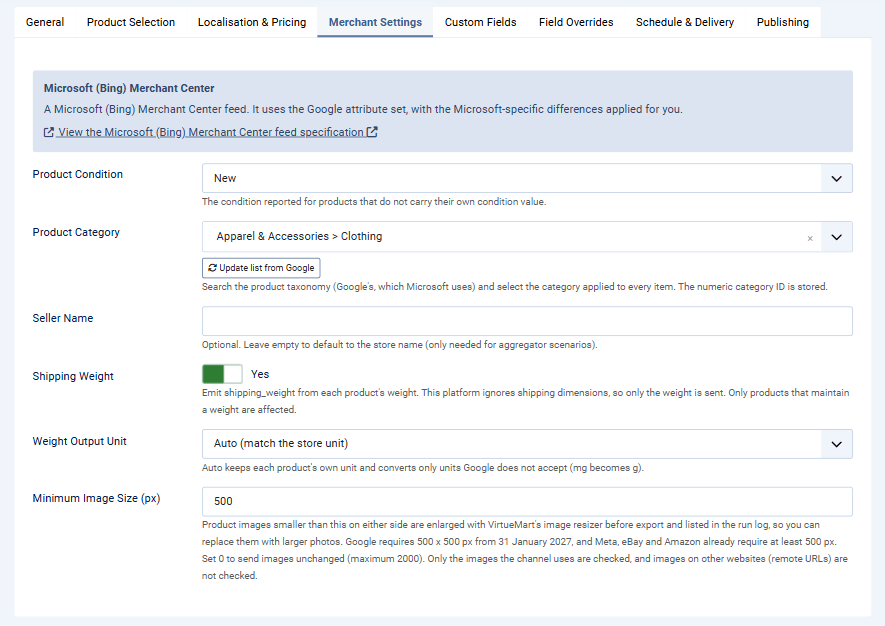
Microsoft reads the same attribute set as Google, and the component applies the Microsoft specific differences for you. In practice you can set a Bing profile up exactly like a Google one.
Product Condition
Same as Google.
Product Category
The same searchable picker, using Google's taxonomy, which Microsoft also uses.
Seller Name
Optional. Leave it empty to fall back to your store name. You only need it in aggregator or multi seller setups.
Shipping Weight
Sends each product's weight. Microsoft does not use shipping dimensions, so only the weight is sent even though the setting sits next to Google's.
Weight Output Unit
Works exactly as it does for Google.
Meta (Facebook / Instagram)
Produces a catalogue feed for Facebook and Instagram Shops. It uses the Google attribute set plus Meta's own fields.
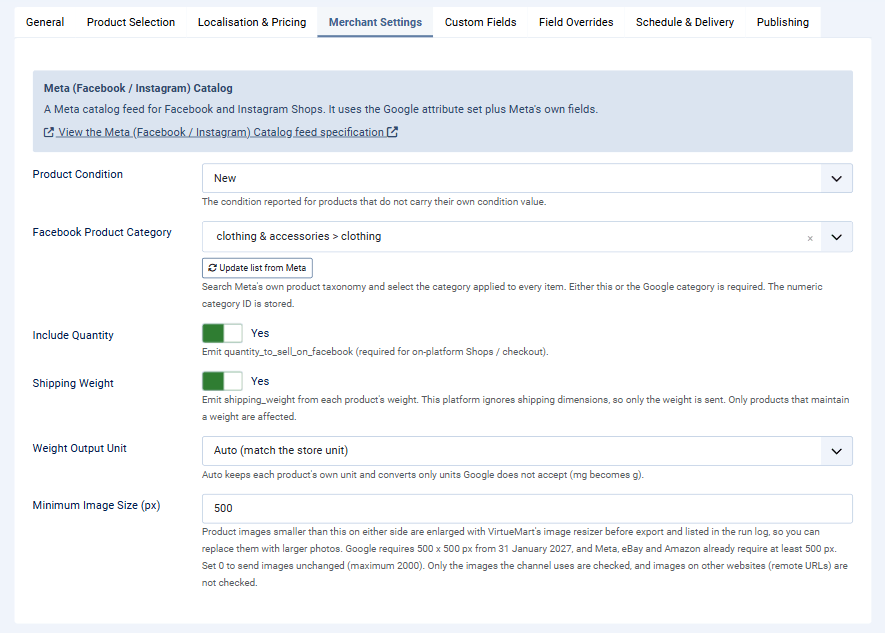
Product Condition
Same as Google.
Facebook Product Category
A searchable picker just like Google's, but backed by Meta's own taxonomy. Either this or a Google product category is required (a Google category can be sent with a Field Override on google_product_category), and the numeric category ID is stored for you. The Update list from Meta button refreshes the bundled list.
Include Quantity
Sends the quantity available to sell on Facebook. Turn this on if you sell directly through Facebook or Instagram Shops, since on platform checkout needs it.
Shipping Weight
Sends each product's weight. Like Microsoft, Meta does not use shipping dimensions.
Minimum Image Size (px)
Keep it at 500 or more. Meta rejects images smaller than 500 x 500 px.
Weight Output Unit
Works exactly as it does for Google.
Amazon Inventory Loader
A flat file that updates the price and quantity of offers on products that already exist in Amazon's catalogue.
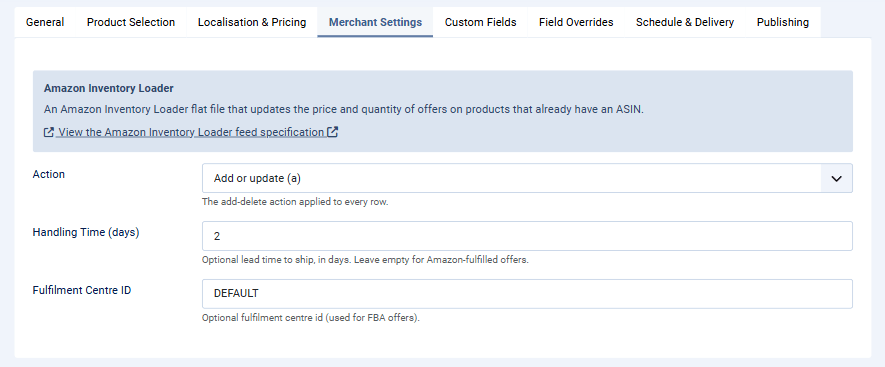
Action
The add or delete action applied to every row: add or update, delete from your catalogue, or remove from Amazon.
Handling Time (days)
Optional lead time to ship, in days. Leave it empty for offers fulfilled by Amazon.
Fulfilment Centre ID
Optional, used for FBA offers.
Important. This file requires a product identifier as well as the SKU, price and quantity, so each product needs a GTIN, EAN, UPC or ASIN recorded in VirtueMart. Products without one are reported as skipped with the message "Missing required field: product-id". Once the file is generated, upload it in Amazon Seller Central under Inventory → Add Products via Upload.
Amazon Price & Quantity
The simplest of the Amazon files. It updates only the price and the available quantity of listings that already exist, and it needs nothing more than the SKU, the price and the quantity, all of which come from your catalogue automatically.
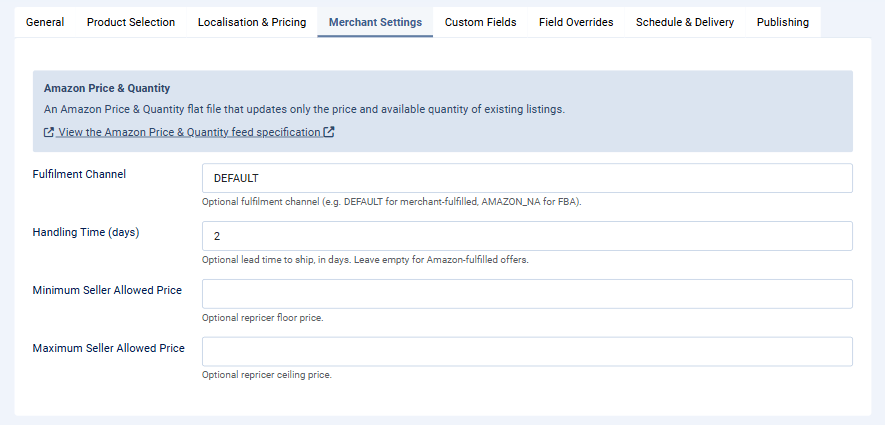
Fulfilment Channel
Optional. Use DEFAULT for merchant fulfilled offers or a value such as AMAZON_NA for FBA.
Handling Time (days)
Optional lead time to ship, in days.
Minimum Seller Allowed Price
Optional floor price for Amazon's repricer.
Maximum Seller Allowed Price
Optional ceiling price for Amazon's repricer.
Amazon Listing Loader
Creates and updates listings against products that already exist in Amazon's catalogue.
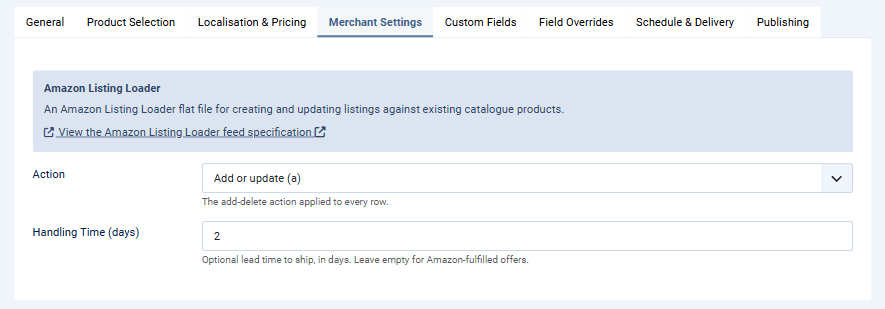
Action
The add or delete action applied to every row.
Handling Time (days)
Optional lead time to ship, in days.
Like the Inventory Loader, this file needs a product identifier on every product as well as the SKU, price and quantity.
Amazon Category Listings
This one matches a category template that you download from Amazon Seller Central. Open Seller Central, download the inventory file template for your product type, and copy the values from row 1 of that template into the fields below. Amazon issues the version and the signature and they cannot be guessed, so they have to be copied across.
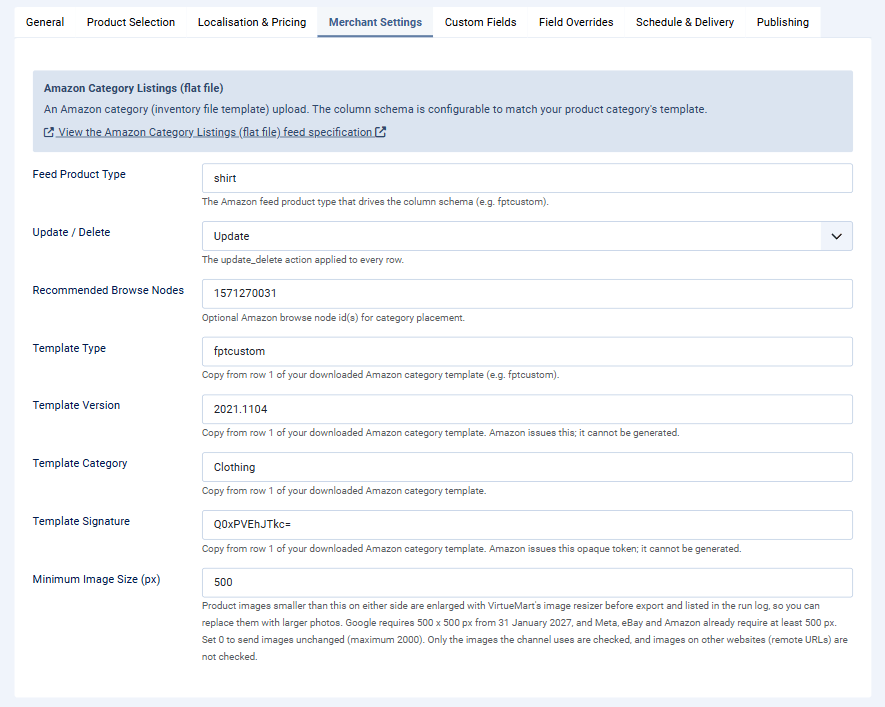
Feed Product Type
The Amazon feed product type that drives the column schema, for example shirt.
Update / Delete
The action applied to every row: update, partial update covering the offer only, or delete.
Recommended Browse Nodes
Optional Amazon browse node IDs used for category placement.
Template Type
Copy this from row 1 of your downloaded template, for example fptcustom.
Template Version
Copy this from row 1 of your downloaded template.
Template Category
Copy this from row 1 of your downloaded template.
Template Signature
An opaque token issued by Amazon. Copy it from row 1 of your downloaded template.
Column Schema
The ordered columns for this category template and where each one gets its value. Leave the table empty to use the default fptcustom column set, which suits most sellers.
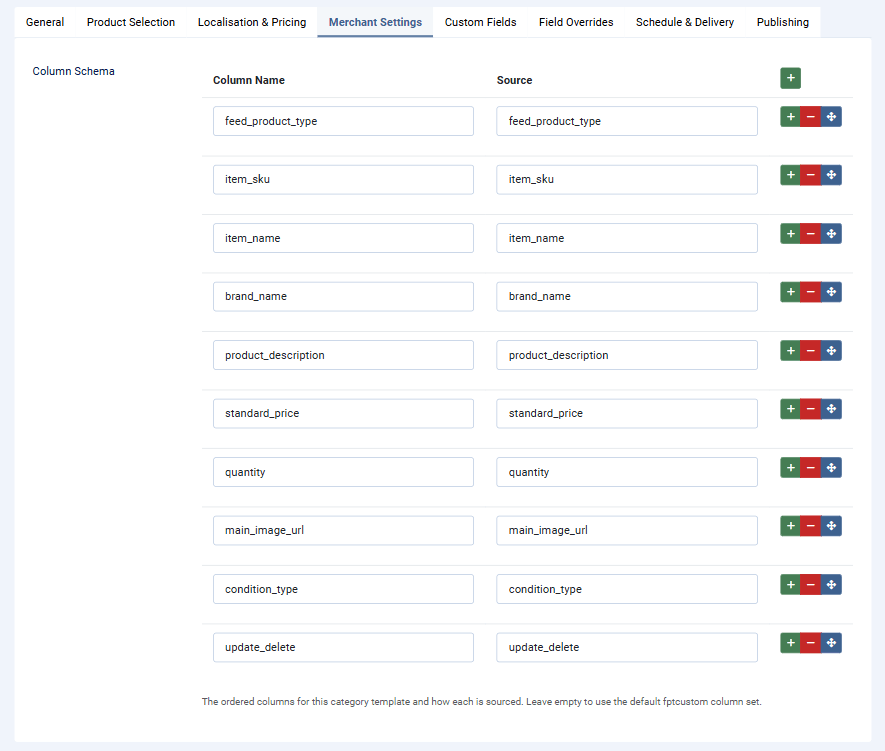
If you do build your own schema, keep the four columns Amazon treats as mandatory: feed_product_type, item_sku, item_name and standard_price. Leaving one of them out causes every row to be rejected, and the run reports each product as skipped with a "Missing required field" message.
Because this template accepts free text attribute names, the Custom Fields tab lets you map a VirtueMart custom field to any column in your schema, such as color_name or size_name.
eBay File Exchange
Produces an eBay File Exchange or Seller Hub Reports file. Item specifics on eBay are defined by the seller, so a custom field can map to any column name you type.
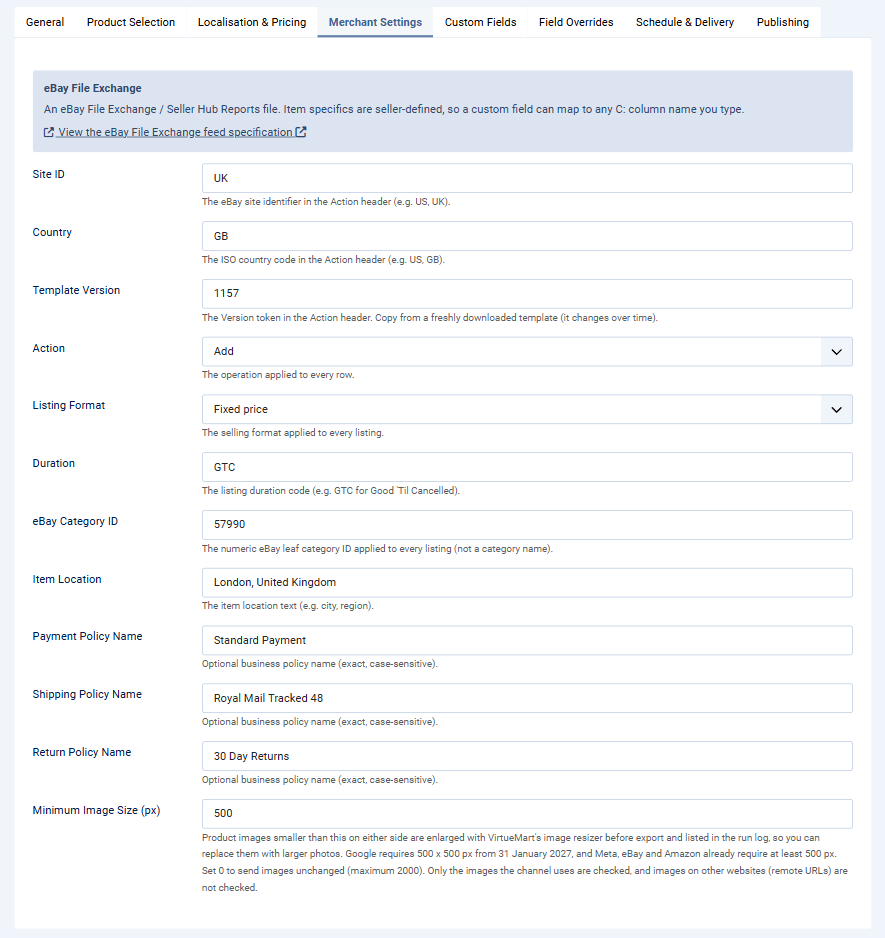
Site ID
Your eBay marketplace identifier, for example US or UK. The currency in the file is the profile's Currency on the Localisation & Pricing tab.
Country
The ISO country code that goes in the Action header, for example US or GB.
Template Version
The Version token from the Action header. eBay changes this over time, so copy it from a freshly downloaded template rather than reusing an old value.
Action
The operation applied to every row: Add, Revise, Relist or End.
Listing Format
Fixed price or Auction.
Duration
The listing duration code, for example GTC for Good 'Til Cancelled.
eBay Category ID
The numeric eBay leaf category ID applied to every listing. This has to be the number, not the category name.
Item Location
Where the items ship from, written as free text such as a city and region.
Payment Policy Name, Shipping Policy Name, Return Policy Name
Optional business policy names. They must match your eBay policies exactly, including capitalisation, or eBay will reject the file.
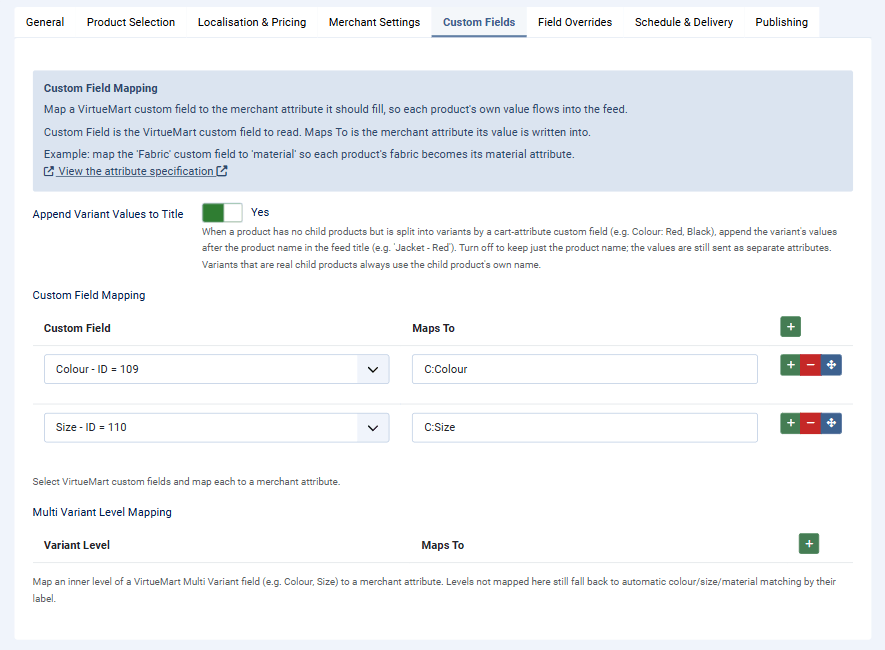
Mapping item specifics. On the Custom Fields tab, map your VirtueMart custom fields to item specifics using the C: prefix, so a Colour field maps to C:Colour and a Size field to C:Size.
Generating the Feed
Generate Now
Click Generate now, either on the Profiles list or on the profile's Schedule & Delivery tab. A small window appears while the component reads your catalogue and writes the file, and it tells you the result when it has finished.
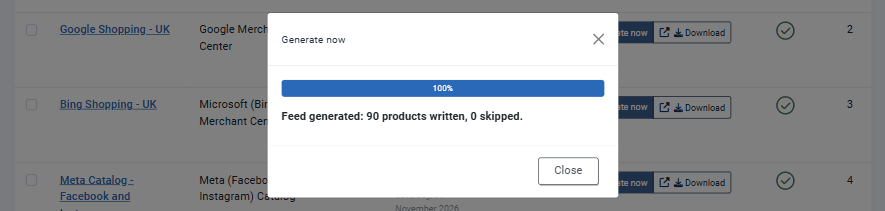
The result gives you two numbers. Written is how many items went into the feed, and skipped is how many products were left out because they were missing something the channel requires, most often a price, a description or an image.
One thing worth remembering: editing a profile does not rebuild its feed. The feed URL keeps serving the last generated file until you press Generate now again or a schedule runs, so make a habit of regenerating after you change a mapping or a product filter.
One Run at a Time
Only one run of a profile works at a time, whether the Generate now button, a Scheduled Task, the web cron URL or the command line starts it. A second run that starts while the first is still working does nothing: the feed stays as it is, and the Runs list shows the second run as Skipped, with a message that names the run in progress. For example:
Skipped because run #257 of this profile, started via the Generate button at 2026-11-06 13:55:58 UTC, is still in progress. The feed was not changed.The other profiles in the same scheduled run are generated as usual, and the Generate now window shows the same message. While a run is working, the feed URL carries on serving the last complete file.
When the Generate now window reports an error, it stops the run straight away. The run is marked Error and the profile is free again. A run can also stop without anyone seeing it, for example when you close the browser tab during Generate now or the server ends a scheduled run. Its profile then stays blocked for 10 minutes at most. The next run after that marks the stopped run as Error with a message saying it did not finish, tidies away the files it left behind and generates the feed.
Feed Runs
Every generation is recorded on the Runs list, whichever way it was triggered. This is where you confirm a feed built correctly and find out what went wrong when it did not.
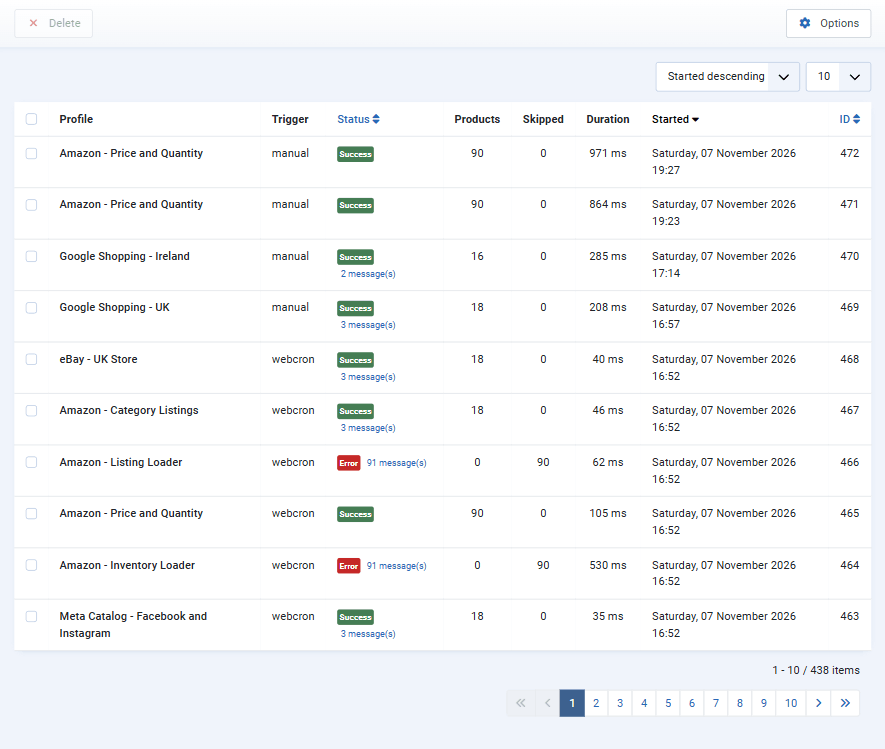
Profile
The feed profile that was generated.
Trigger
What started the run: manual for the Generate now button, task for Joomla's scheduler, webcron for the web cron URL, or cli for the command line.
Status
Success means every selected product was written. Partial means the feed was built but some products were skipped. Error means the run failed or stopped, or skipped every product, and the feed was not changed. Skipped means another run of the same profile was in progress, so this run did nothing (see One Run at a Time). Running is shown while a run is still working. When a run has messages, a link appears under the badge showing how many.
A run that skips every product keeps the feed you already have, because an empty feed would remove all your products from the channel. A profile that has never produced a feed has no file yet, so its feed URL answers "Not found." until a run publishes one.
Products and Skipped
How many items were written and how many were left out.
Duration
How long the run took, in milliseconds.
Started
When the run began.
Click the message count under a status badge to see exactly which products were skipped and why.
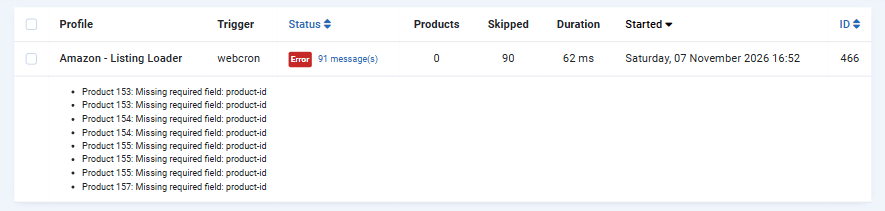
Each line names the product and the field it was missing, so you can go straight to that product in VirtueMart, fill in the gap and generate again.
Getting the Feed URL
Each profile has a Copy button next to its feed URL, both on the Profiles list and on the profile's Schedule & Delivery tab. Click it and paste the address into the channel's feed or data source settings.
The feed URL is a plain public address and it always serves the most recently generated file. Feed data is meant to be read by shopping channels, so there is no token to manage and nothing about your administrator is exposed. This is what a generated Google feed looks like:
<?xml version="1.0" encoding="UTF-8"?>
<rss version="2.0" xmlns:g="http://base.google.com/ns/1.0">
  <channel>
    <title>Google Shopping - UK</title>
    <link>https://www.your-site.com</link>
    <description>Waterproof jackets, shirts and outdoor apparel.</description>
    <language>en-GB</language>
    <item>
      <g:id>195</g:id>
      <title>Dress Shirt with tie - small</title>
      <description><![CDATA[<p>Refresh yourself with genuine VM dress.</p>]]></description>
      <link>https://www.your-site.com/en/wear/dress-shirt-with-tie-detail.html</link>
      <g:image_link>https://www.your-site.com/images/virtuemart/product/shirt1.png</g:image_link>
      <g:availability>in_stock</g:availability>
      <g:price>56.29 USD</g:price>
      <g:condition>new</g:condition>
      <g:brand>VirtuePlanet</g:brand>
      <g:item_group_id>154</g:item_group_id>
      <g:product_type><![CDATA[Wear > Mister]]></g:product_type>
      <g:google_product_category>1604</g:google_product_category>
      <g:shipping_weight>200 g</g:shipping_weight>
      <g:shipping_length>40 cm</g:shipping_length>
      <g:shipping_width>40 cm</g:shipping_width>
      <g:shipping_height>40 cm</g:shipping_height>
    </item>
  </channel>
</rss>
The Amazon and eBay files are not collected by a URL in the same way. For those, use the Download button and upload the file in Seller Central or Seller Hub.
Scheduling Automatic Updates
Shopping channels expect your feed to stay current, so it is worth setting it to rebuild on a schedule. There are three ways of doing that and you only need one of them. Joomla's built in Scheduled Tasks is the one we recommend for most sites. If two methods start the same profile at the same moment, the second run is skipped (see One Run at a Time).
Whichever method you choose, remember the Enable Scheduling switch on each profile's Schedule & Delivery tab. When a scheduled run is told to refresh all due profiles, it only includes profiles whose switch is on.
Joomla Scheduled Tasks
This uses Joomla's own scheduler, so there is nothing extra to set up or host.
- Go to System → Manage → Scheduled Tasks (
index.php?option=com_scheduler&view=tasks). - Click New and choose VP Merchant Export: Generate Feeds from the list of task types.
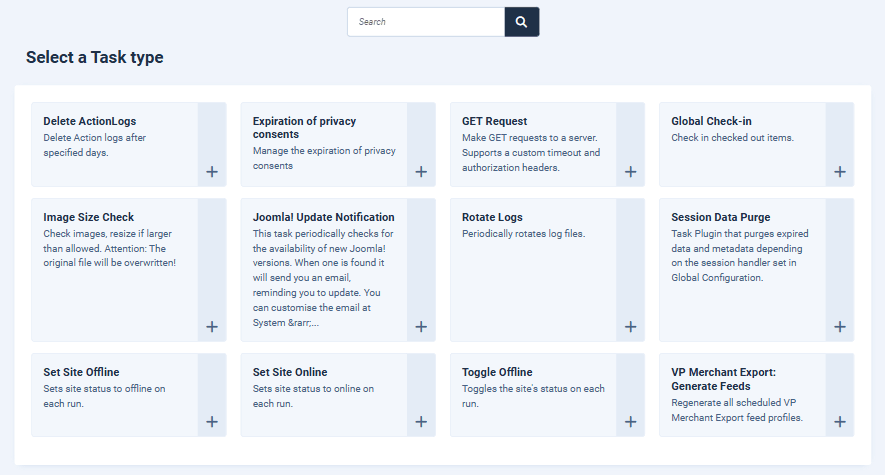
- Give the task a name, set how often it should run, and save it.
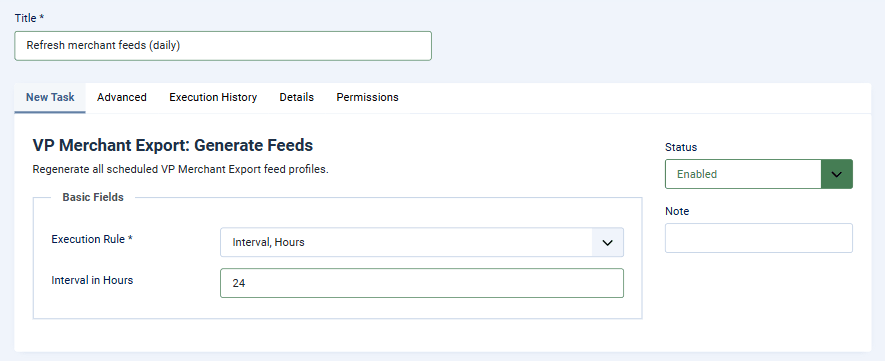
Joomla then runs the task on its normal scheduler trigger, which is either the lazy web trigger or the php cli/joomla.php scheduler:run command, depending on how your site is set up.
If you run scheduler:run from an operating system cron job, add --live-site=https://www.your-site.com to it, or set $live_site in configuration.php. The command line has no website address of its own, so without one the task stops with an error in the scheduler log instead of writing feeds with broken links.
This task refreshes every profile that has Enable Scheduling switched on. If you need to rebuild one specific profile on its own schedule, use the web cron URL with &profile=ID or the command line with --profile=ID, both described below.
One small detail: when the scheduler is triggered by a normal visit to your site it produces the short, search friendly product links. If you trigger it from the command line instead, see the note under the command line section.
Web Cron URL
Use this if you prefer an external cron service such as cron-job.org or your hosting control panel's cron feature.
Go to Components → VP Merchant Export → Options → Scheduling. Web Cron is enabled by default and a long random secret key is generated for you during installation, so the page already shows ready to use URLs that you can copy.
https://www.your-site.com/index.php?option=com_vpmerchantexport&task=cron.run&key=YOUR_SECRET_KEY
The Options page shows two versions of the URL. The first refreshes the profiles that have Enable Scheduling switched on, and the second, which carries &all=1, refreshes every published profile. Add &profile=ID to either one to rebuild a single profile. If you change the secret key and save, the URLs on the page update to match.
Because this trigger runs as an ordinary web request, it produces the short, search friendly product links.
Command Line
For an operating system cron job on your own server:
php cli/joomla.php merchantexport:generate --all --live-site=https://www.your-site.com
Replace --all with --profile=ID to refresh a single profile, and add --lang=de-DE to force a particular feed language. You must pass --live-site with your real domain, because the command line has no website address of its own and the product links would otherwise be wrong.
A note about link format. Feeds generated on the command line, and feeds generated by Joomla's scheduler when that scheduler is itself triggered from the command line, use the full non-shortened product address containing index.php?... rather than the short search friendly one. Both addresses open exactly the same page and the feed language is applied normally, so this is a cosmetic difference only. If the short addresses matter to you, use the web cron URL or let Joomla's scheduler run on a web visit, since both of those run as web requests.
When a Run Fails
When a profile's run ends in Error, each method reports it with the profile and the reason, so Joomla or your cron service can warn you.
- Scheduled Tasks: the task is marked as failed. The Scheduled Tasks list shows "Task failed. Exit code: 5", the task log lists each failed profile, and Joomla sends its failure email when Task Failure is switched on in the task's Notifications.
scheduler:run --id=<task id>also exits with code 5. Ascheduler:runthat runs more than one task always exits with 0, because Joomla passes on the code of a single task only. - Web cron URL: the URL answers with HTTP status 500 instead of 200. Most cron services treat that as a failed job.
- Command line: the command exits with code 1.
A Skipped run (another run of the profile was busy) and a Partial run (some products skipped) are not failures.
Component Options
Open Components → VP Merchant Export and click Options in the top right. These settings apply to the whole component rather than to a single profile.
Feed
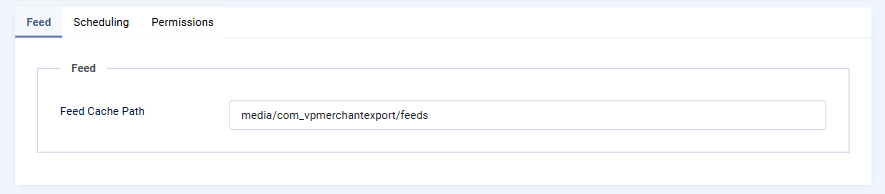
Feed Cache Path
The folder, relative to your site root, where generated feed files are stored. The files are never browsable directly and are served only through the component's own feed URL. The default suits most sites, so change it only if you have a reason to.
Scheduling
This tab configures the optional web cron trigger. It does not replace Joomla's Scheduled Tasks, and a short note at the top of the tab summarises all three scheduling methods so you can pick one without leaving the page.
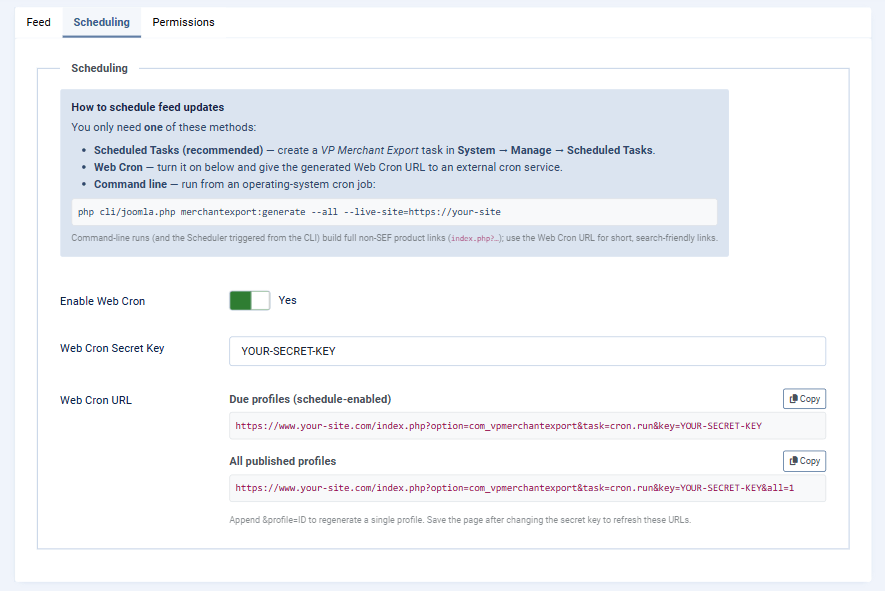
Enable Web Cron
On by default. Allows feeds to be rebuilt by calling the secret web cron URL from an external cron service.
Web Cron Secret Key
The key that the URL has to include. A long random key is generated for you during installation. You can replace it with your own value, but keep it long and random, because it is the only thing protecting the trigger.
Web Cron URL
Read only. It shows the ready to use URLs built from the secret key above, each with its own Copy button. Save the page after changing the key and these URLs update to match.
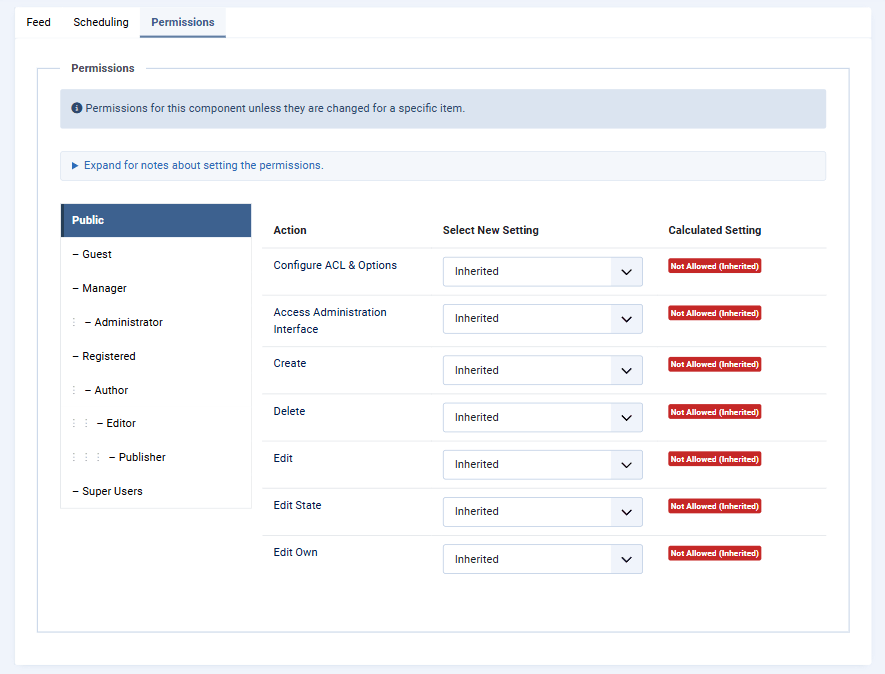
Permissions
The standard Joomla permissions screen, so you can decide which user groups may configure, create, edit or delete feed profiles. This is worth setting up if people other than your administrators work in the shop.
Price rounding has no setting in the Options. Feed prices follow VirtueMart's own price display settings for guests, so the feed matches your product pages (see Localisation & Pricing).
Shipping Weight, Dimensions and Cost
Some channels use a product's weight and package dimensions to work out shipping. VirtueMart already stores both on each product, under Product Dimensions and Weight, and VP Merchant Export can pass them straight through.
On the Merchant Settings tab you will find Shipping Weight & Dimensions for Google, or Shipping Weight for Bing and Meta. Both are switched off by default. What actually gets sent differs by channel:
- Google receives the shipping weight and the length, width and height trio. Google only uses the three dimensions together, so they are sent only when all three are filled in on the product.
- Bing and Meta receive the shipping weight only. Neither uses shipping dimensions, so sending them would achieve nothing and the component leaves them out.
Only products that actually carry these values are affected. A product with no weight sends no weight, and a product with no dimensions sends no dimensions. Nothing is ever sent as zero or blank. Each variant uses its own weight and dimensions where they are set and otherwise inherits the parent product's, exactly as VirtueMart itself does.
If a channel complains that a value is out of range, check the units on the product in VirtueMart. Google, for instance, accepts dimensions from 1 to 400 cm, or 1 to 150 in, and weights up to 1000 kg or 2000 lb.
Why shipping cost is not in the feed
Shipping cost cannot go in the feed, and the component does not try to put it there. In VirtueMart the cost is worked out at checkout from the customer's destination, the contents of the cart and your shipping plugins, so there is no single per product figure that would be correct in a feed.
Set your shipping cost at the channel instead. In Google Merchant Center, open Shipping and returns (or Tools and settings → Shipping and returns), create a shipping service for each country you ship to and add your rates, whether flat, by weight, by price or carrier calculated. The weight and dimensions described above feed straight into Google's weight based and carrier based calculations. Bing and Meta work the same way through their own shipping settings. Google's own guide is at support.google.com/merchants/answer/12157544.
Setting rates at the account level is what the channels themselves recommend, and it keeps one source of truth for cost rather than a figure baked into a feed that quietly goes out of date.
Product Images
Shopping channels reject product images that are too small:
| Channel | Minimum image size |
|---|---|
| 500 x 500 px for all products from 31 January 2027. Merchant Center already warns "Image too small for upcoming enforcement". Google recommends 1500 x 1500 px or larger. | |
| Meta (Facebook / Instagram) | 500 x 500 px |
| eBay | 500 px on the longest side; 1600 x 1600 px recommended |
| Amazon | 500 px on the longest side; over 1000 px so shoppers can zoom |
Minimum Image Size (px)
The Merchant Settings tab of every channel that sends images (Google, Bing, Meta, eBay and the Amazon category template) has a Minimum Image Size (px) setting. It is 500 px by default. When a product image is smaller than this on either side, the feed sends an enlarged copy instead, made with VirtueMart's own image resizer. Set it to 0 to send every image unchanged. The highest value is 2000.
Only the images the channel actually uses are checked: the main image and up to 10 more for Google and Meta, the main image only for Bing and the Amazon category template, and all images for eBay.
How the enlarged copies work
- Your original image is not changed. The copy is saved next to VirtueMart's thumbnails, in
images/virtuemart/product/resized/, with the size in its name, for exampleshirt1_500x559.png. - The proportions are kept, so the shorter side becomes exactly the minimum.
- The copy is made once and reused on later runs.
- It works even when Enable Dynamic Thumbnail Resizing is switched off in the VirtueMart configuration. That setting is not changed, and your storefront is not affected.
- Images hosted on another website (a full web address in VirtueMart) are sent unchanged.
Replace small images when you can
Every enlarged image is listed in the run messages, for example Product 154: image images/virtuemart/product/shirt1.png is 272 x 304 px, so the feed uses an enlarged copy (500 x 559 px). The first 100 such messages of a run are listed, followed by a count of the rest. An enlarged image meets the minimum, but it is no sharper than the original, and Google advises against scaled up images. Use the list to upload real photos of at least 500 x 500 px, ideally 1500 x 1500 px, in VirtueMart. The feed then sends them as they are.
Multilingual Feeds
If your shop runs in several languages, create one profile per language and set the Language on each profile's Localisation & Pricing tab. Product names, descriptions and category paths are then taken from that language, and the product links point at that language's pages.
Translations only appear if they exist in VirtueMart. Where a translation is missing, VirtueMart falls back to the default language and so does the feed, which is why a German feed can still contain English text for products nobody has translated yet.
There is one exception worth knowing about. VirtueMart keeps translated tables for products, categories and manufacturers, but it has no translated table for custom field values. If you map a custom field whose values need translating, you can define the translation in the feed language's file using a key built from the value in upper case with underscores. To send "Rot" wherever a mapped value reads "Red", add this to your German language file:
COM_VPMERCHANTEXPORT_VALUE_RED="Rot"
This is entirely optional. Values without such a key are sent through unchanged.
Troubleshooting
Some products were skipped
Open the Runs list and click the message count next to the run. Each line names the product and the field it was missing. Most of the time it is a price, a description or an image. Fix the product in VirtueMart and generate again.
An Amazon file reports "Missing required field: product-id"
The Inventory Loader and Listing Loader both need a product identifier, which means a GTIN, EAN, UPC or ASIN on each product in VirtueMart. Add the identifiers, or use the Price & Quantity file instead, since that one only needs the SKU, price and quantity. When no product has an identifier, the run ends in Error and the previous file is kept.
A run shows Error and every product was skipped
Nothing from the run could go into the feed, so the feed you already had was kept (an empty feed would remove every product from the channel). Read the run messages for the reasons, fix the products or the profile, and generate again.
The cron service reports a failure, or the web cron URL answers with status 500
At least one profile's run failed. The response lists each failed profile with the reason, and the Runs list has the details. The command line exits with code 1 for the same reason.
Google says an option's price does not match the landing page
Every option item links to the same product page, and that page opens at its default price. Google compares the feed price with the page, so an option with a different price can be flagged or changed to the page price. The feed still sends the price a shopper pays for that option. If each option must pass Google's check, make the options child products in VirtueMart, so each one has its own page.
An Amazon category file rejects every row
If you have built a custom column schema, check that it still contains feed_product_type, item_sku, item_name and standard_price. Amazon treats all four as mandatory, and leaving one out causes every product to be skipped. Emptying the schema restores the default column set.
The feed is empty or smaller than expected
Check the Product Selection tab first. A category filter, a manufacturer filter or In Stock Only may be excluding more than you intended. Remember too that a variant parent appears as a group rather than as a separate item, so the item count can legitimately be lower than your product count.
Generate now asks you to reload the administrator page
The Generate now button carries a security token that lasts one day, so a page left open longer cannot start a run. Reload the page and click Generate now again.
My changes are not showing in the feed
Editing a profile does not rebuild the feed. Click Generate now, or wait for the next scheduled run.
The command line, or the Scheduled Task log, reports an error about the site URL
On the command line Joomla has no way of knowing your domain. Pass --live-site=https://www.your-site.com to merchantexport:generate, or to scheduler:run when Joomla's scheduler runs from an operating system cron job, or set $live_site in configuration.php. The web cron URL, and the scheduler when a site visit starts it, do not need it.
Command line feeds use longer product addresses
That is expected. Feeds generated from the command line, or by the Scheduler when it runs on the command line, use the full index.php?... address rather than the short one. Both work identically, and the feed language is applied normally. Use the web cron URL if you would rather have the short addresses.
Prices look wrong in another currency
Currency conversion uses your VirtueMart exchange rate settings, so update the rate in VirtueMart. The feed always mirrors whatever your storefront would show.
Feed prices have more or fewer decimals than expected
The feed rounds prices the way a guest sees them on your storefront (see Localisation & Pricing). Check the Rounding Digits of the Guest Shopper Group if it has its own price display, or otherwise under VirtueMart > Configuration > Pricing, and generate the feed again.
A run shows the status Skipped
Another run of the same profile was still working when it started, so it left the feed alone. Its message names that run. This happens when two schedules overlap, or when you click Generate now during a scheduled run. Wait for the other run to finish, or for the next schedule. A run that stopped half way frees the profile after 10 minutes at the latest.
A non-English feed still shows English text
Product names and descriptions are only translated if that language has been filled in on the products in VirtueMart. Where a translation is missing, VirtueMart falls back to the default language and the feed follows suit.
A channel rejects the feed
Open the channel's own feed diagnostics first, because they usually name the problem precisely. The most common causes are a missing required attribute, an invalid GTIN, or a category value the channel does not recognise. The specification link at the top of the Merchant Settings tab takes you to that channel's current requirements.
The run messages say the feed uses an enlarged copy of an image
The image is smaller than the Minimum Image Size, so the feed sends an enlarged copy (see Product Images). Upload a larger photo for that product in VirtueMart to remove the message. If a message says an image "could not be enlarged", VirtueMart could not resize it: for example the image is very long and narrow, the file is not in VirtueMart's product image folder, or it is in a format VirtueMart cannot resize. Replace it with a normal JPEG, PNG or WebP product photo uploaded through VirtueMart.
The run messages say VirtueMart had already loaded the logged in user's shopper groups
Something else in the same page request used VirtueMart before the feed ran, so prices that variants take from their parent product may be that user's prices. Generate the feed with the web cron URL or from the command line.
A product's GTIN is missing from a Google, Bing or Meta feed
These feeds only send a GTIN that has a valid check digit and is not in a range Google refuses: in store codes (13 digit codes starting with 2, 02 or 04, and 12 digit UPCs starting with 2 or 4) and coupon codes (13 digit codes starting with 05, 98 or 99, and 12 digit UPCs starting with 5). Without a GTIN, the product is sent with its brand and MPN, or marked as having no identifier. Check the barcode on the product in VirtueMart.
The channel asks for shipping weight or dimensions
Turn on Shipping Weight & Dimensions for Google, or Shipping Weight for Bing and Meta, on the Merchant Settings tab, and make sure the products have their weight and dimensions filled in under Product Dimensions and Weight in VirtueMart. Google needs all three dimensions present before it uses them. Shipping cost is set at the channel, not in the feed; see Shipping Weight, Dimensions and Cost.
Frequently Asked Questions
Is the feed URL public?
Yes. Feed data is meant to be read by shopping channels, so the URL is a plain public address you can paste anywhere. It serves the most recently generated file and reveals nothing about your administrator.
How often is the feed rebuilt?
Only when you generate it, either by clicking Generate now or through the schedule you set. Collecting the URL never rebuilds it, so a channel that checks every hour costs your server nothing.
Can I feed more than one channel?
Yes. Create one profile per channel. You can also create several profiles for the same channel, for example one per language or per currency.
Does it push products directly into the channel's system?
Not in this version. It generates feed files that the channels collect, or that you upload in the case of Amazon and eBay. This keeps feeds reliable and easy to check for yourself.
Where are the feed files stored?
In a protected folder on your server that cannot be browsed directly. You can change its location under the component Options.
Will it slow my site down?
No. Feeds are built in batches and written row by row, so memory use stays flat no matter how large your catalogue is, and the file is only built when you ask for it or the schedule runs. Serving the feed to a channel is just a file download.